Not setting window frame! Too Expensive!
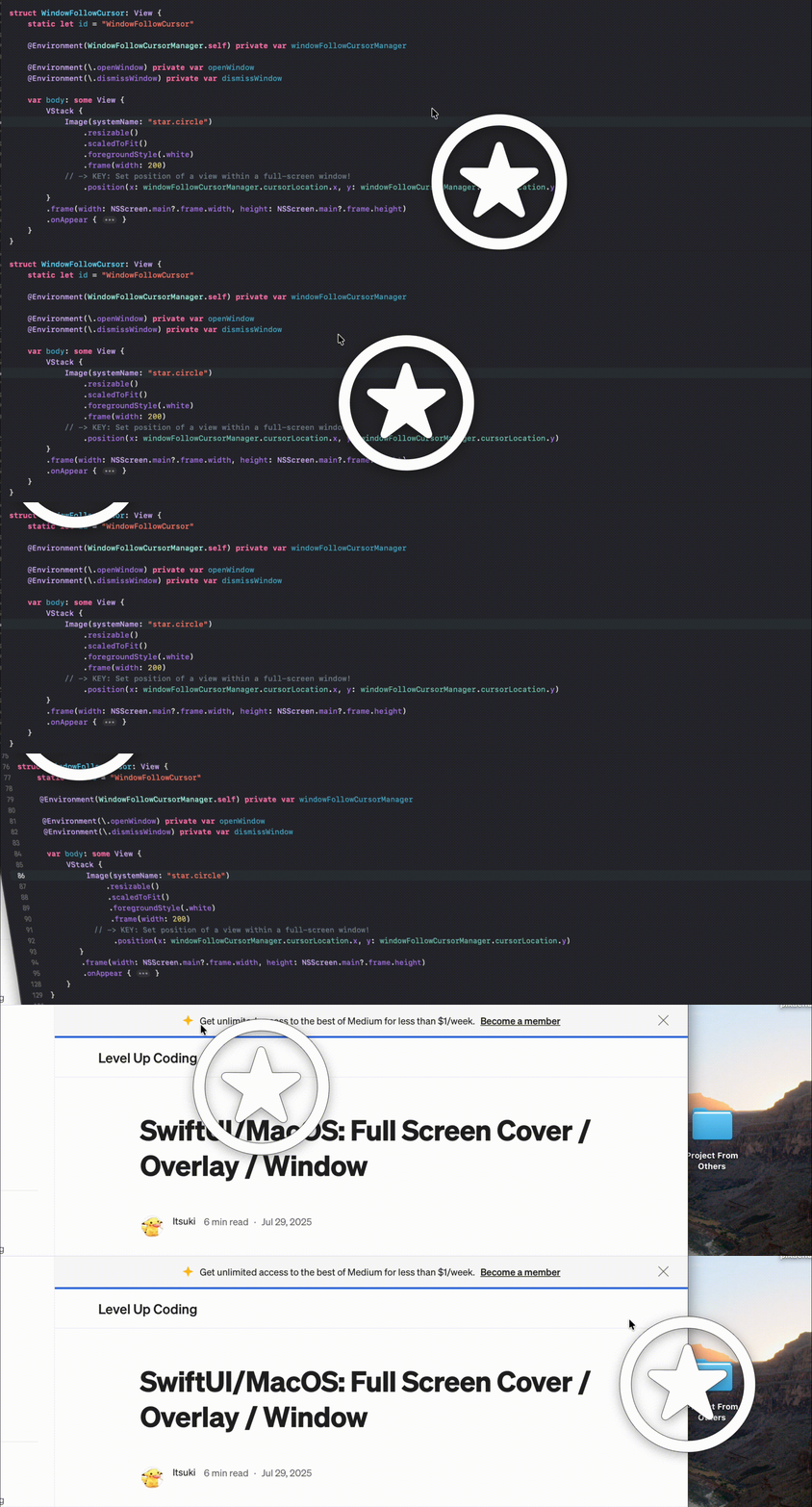
Goal?
I want to add some custom stuff around my pointer!
First of all, trying to setFrame on an NSWindow for every cursor movement is just too expensive, the delay is huge, and it is just not responsive!
NSEvent.addGlobalMonitorForEvents(matching: [.mouseMoved], handler: { event in
    window.setFrameOrigin(event.locationInWindow)
})
However, just admit that it won’t work is obviously not a really cool conclusion!
So!
What am I going to do with it?
Let’s check it out!
A little Work Around!
Idea
Why did I have those quotes on my title, around Window?
We all have moved views around based on mouse or gesture locations right?
It is not that expensive, right?
So!
Why don’t we just create a transparent full screen cover like what we had in my previous SwiftUI/MacOS: Full Screen Cover / Overlay / Window and update a view position within that window based on the cursor location?
Final Code
The idea is simple so let me share with you my final code here and then go into couple little points!
import SwiftUI

@Observable class WindowFollowCursorManager {

    var cursorLocation: NSPoint = .init(x: NSEvent.mouseLocation.x + offset, y: screenHeight - NSEvent.mouseLocation.y + offset)

    private var initialized: Bool = false

    private static let offset: CGFloat = 100
    private static let screenHeight = NSScreen.main?.frame.height ?? 800

    init() {
        NSEvent.addGlobalMonitorForEvents(
            matching: [.mouseMoved],
            handler: { [weak self] event in
                guard let self else {
                    return
                }
                self.updateCursorPoint(event)
            }
        )

        // required for both global and local
        // if local one is not added, the window will not focus the cursor when the app is in focus.
        NSEvent.addLocalMonitorForEvents(
            matching: [.mouseMoved],
            handler: { [weak self] event in
                guard let self else {
                    return event
                }
                self.updateCursorPoint(event)
                return event
            }
        )
    }

    private func updateCursorPoint(_ event: NSEvent) {
        self.cursorLocation = .init(x: event.locationInWindow.x + Self.offset, y: Self.screenHeight - event.locationInWindow.y + Self.offset)
    }

    func reOpenWindowIfNeeded(openWindow: OpenWindowAction, dismissWindow: DismissWindowAction, windowId: String) {
        print(#function)
        guard !self.initialized else {
            return
        }
        dismissWindow(id: windowId)
        Task { @MainActor in
            try? await Task.sleep(for: .milliseconds(100))
            openWindow(id: windowId)
            self.initialized = true
        }
    }
}

struct WindowFollowCursor: View {
    static let id = "WindowFollowCursor"

    @Environment(WindowFollowCursorManager.self) private var windowFollowCursorManager

    @Environment(\.openWindow) private var openWindow
    @Environment(\.dismissWindow) private var dismissWindow

    var body: some View {
        VStack {
            Image(systemName: "star.circle")
                .resizable()
                .scaledToFit()
                .foregroundStyle(.white)
                .frame(width: 200)
                .position(x: windowFollowCursorManager.cursorLocation.x, y: windowFollowCursorManager.cursorLocation.y)
        }
        .frame(width: NSScreen.main?.frame.width, height: NSScreen.main?.frame.height)
        .onAppear {
            guard let window = NSApplication.shared.windows.first(where: {$0.identifier?.rawValue == Self.id}) else {
                return
            }

            window.setFrameOrigin(.zero)

            window.level = .screenSaver // popUpMenu will also work

            // remove title and buttons
            window.styleMask.remove(.titled)
            window.standardWindowButton(.closeButton)?.isHidden = true
            window.standardWindowButton(.miniaturizeButton)?.isHidden = true
            window.standardWindowButton(.zoomButton)?.isHidden = true

            // so that the window can follow the virtual desktop
            window.collectionBehavior.insert(.canJoinAllSpaces)

            // set it clear here so the configuration in UtilityWindowView will be reflected as it is
            window.backgroundColor = .clear

            window.isMovableByWindowBackground = false

            // required to apply frame changes
            self.windowFollowCursorManager.reOpenWindowIfNeeded(openWindow: self.openWindow, dismissWindow: self.dismissWindow, windowId: Self.id)

        }
    }
}


@main
struct MacOSDemo4App: App {
    private let windowFollowCursorManager = WindowFollowCursorManager()
    var body: some Scene {
        Window("", id: WindowFollowCursor.id) {
            WindowFollowCursor()
                .environment(windowFollowCursorManager)
        }

        // to prevent the app from quiting
        MenuBarExtra("I", content: {})
    }
}
Important Points
Open → Dismiss → Open
First thing that might caught you is that our WindowFollowCursor view, or the actual window, will be going through this open window → dismiss window → and then open window process.
Why is this needed?
Most of the styling and configuration we set on the NSWindow will actually be applied without closing it and opening it again, except for frame related ones, whether that is just the origin or with the size.
Local + Global Monitor
Why do we need both?
Won’t a single global one be enough?
Depending on what you want to achieve.
If we don’t add the local monitor, when our app is in focus, the image will not follow the cursor.
Coordinate System
We all knew this by now, but that opposite y axis in different coordinate systems!
That’s why we are setting the y coordinate of the cursor location (SwiftUI View location) to be Self.screenHeight — event.locationInWindow.y + Self.offset instead!
Initial Position
To make sure that our view will show up right next to the cursor instead of starting at some random point, we are getting the current cursor location on app launch with the mouseLocation property of NSEvent.
Additional Notes
Single Window App
As you might be able to recognize this from my comment above my MenuBarExtra, if we just have a single window, our app will terminate as soon as that window is dismissed. If have added a MenuBarExtra to prevent this from happening, you can also implement a custom NSApplicationDelegate and override applicationShouldTerminateAfterLastWindowClosed instead.
A Way To Quit App
While you are testing, especially if you are giving the view (VStack) a background color to check the position and the size, make sure to add a global short cut to quit the app unless you want to option+command+esc and force quit xcode every time…
For example, adding the following to init of WindowFollowCursorManager so that our app can shut itself down on any flag key pressed!
// quit app on any flag key pressed
// for testing purpose.
NSEvent.addGlobalMonitorForEvents(
    matching: [.flagsChanged],
    handler: { event in
        NSApplication.shared.terminate(nil)
    }
)

NSEvent.addLocalMonitorForEvents(matching: [.flagsChanged], handler: { _ in
    NSApplication.shared.terminate(nil)
    return nil
})
Thank you for reading!
That’s it for this little article!
Happy following the cursor!
SwiftUI/MacOS: “Window” Following the Cursor (Mouse) Position was originally published in Level Up Coding on Medium, where people are continuing the conversation by highlighting and responding to this story.