Popup↔Content Script↔Background Worker↔App. Let’s Communicate! + Teeny Tiny Tips for Debugging those JS!
(Yes, never to hero. I don’t understand why someone can ever claim that an article can take the understanding of a concept from 0 to hero….)
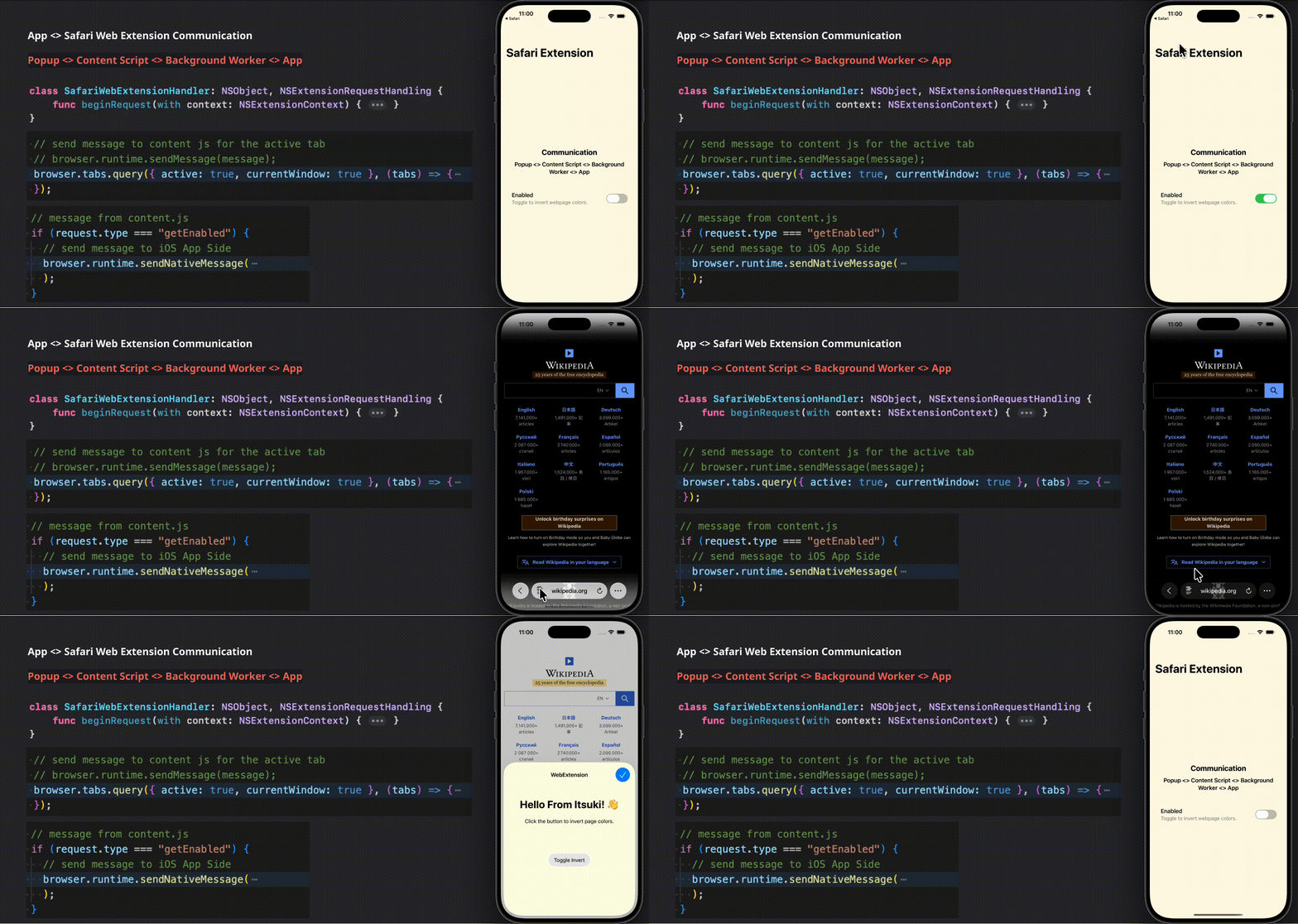
Just like extensions for Google Chrome, Mozilla Firefox, and Microsoft Edge browsers, as the name suggests, Safari Web Extensions adds custom functionality to Safari, using the common file formats, built primarily on JavaScript, HTML, and CSS.
BUT! BUT! BUT!
If it is just that, it won’t be any interesting or special!
We (can) have a container app here!
That’s what we will be focusing here!
The communication (messaging)!
From the popup (in-browser UI) to content script to background worker to extension to our app! Or vice versa!
I will also be sharing with you how we can debug those javascript files because (obviously) console.log will not log in Xcode!
Now, I hope that you do have some experience building Chrome Extensions because the idea is the same and even I don’t like google, I have to say chrome extension is a lot well documented….
Don’t worry if you don’t though! We will check out the basic concepts, background worker vs content script for in-browser UI, the manifest, the communication algorithm, and blahhh, here as well!
Feel free to grab the little app from my GitHub and let’s start!
Add Safari Extension
Hope that you already have a container app up and let’s add in the Safari Extension as a new target.
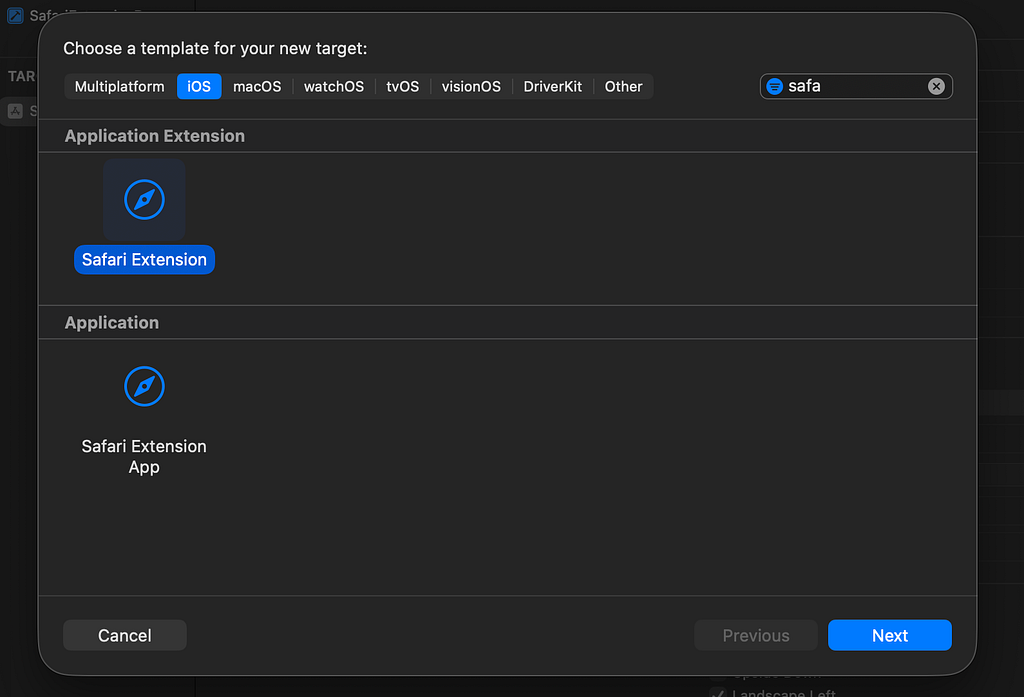
If you want to build an extension app instead, you can choose the bottom one starting from the beginning.
What Is Created
As always (almost?), when we add some new extensions, Apple already provides a bunch of sample code/files for us to test on! (Thank you, Apple!) So let’s take a quick look at what is generated for us here!
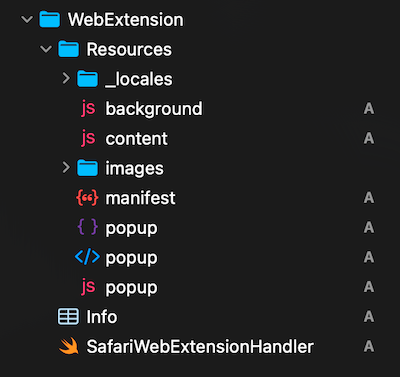
- background.js: Script file for the background worker, containing event-driven script that runs in the background, handling tasks like listening for browser events, managing state, and coordinating communication between extension components without a visible UI.
- content.js: content script that runs in the context of web pages, allowing the extension to read, modify, or interact with the page’s DOM and content directly webpages
- popup.html/css/js: The pop-up menu that Safari displays when the user clicks or taps your extension’s button in the toolbar.
- manifest.json: configuration file that defines the extension’s metadata, permissions, scripts (like background.js and content.js), and behavior, essentially telling Safari how and when to load and run the extension.
- _locales: localizations that the extension uses
- images : images...
Test Time!
There are already some Hello world added for us so let’s give it a run really quick!
To run the Safari Web Extension, we can either run the container app or the extension directly. Let’s do the container app here but it could useful to run the extension directly if you have some print there!

If this is your first install, enable the web extension in Safari.
The More menu (left to the URL) > Manage Extensions > Enable. (Alternatively, you can also do this in the Settings app > Safari > Extensions)
We can then tap on the extension to bring up the popup!
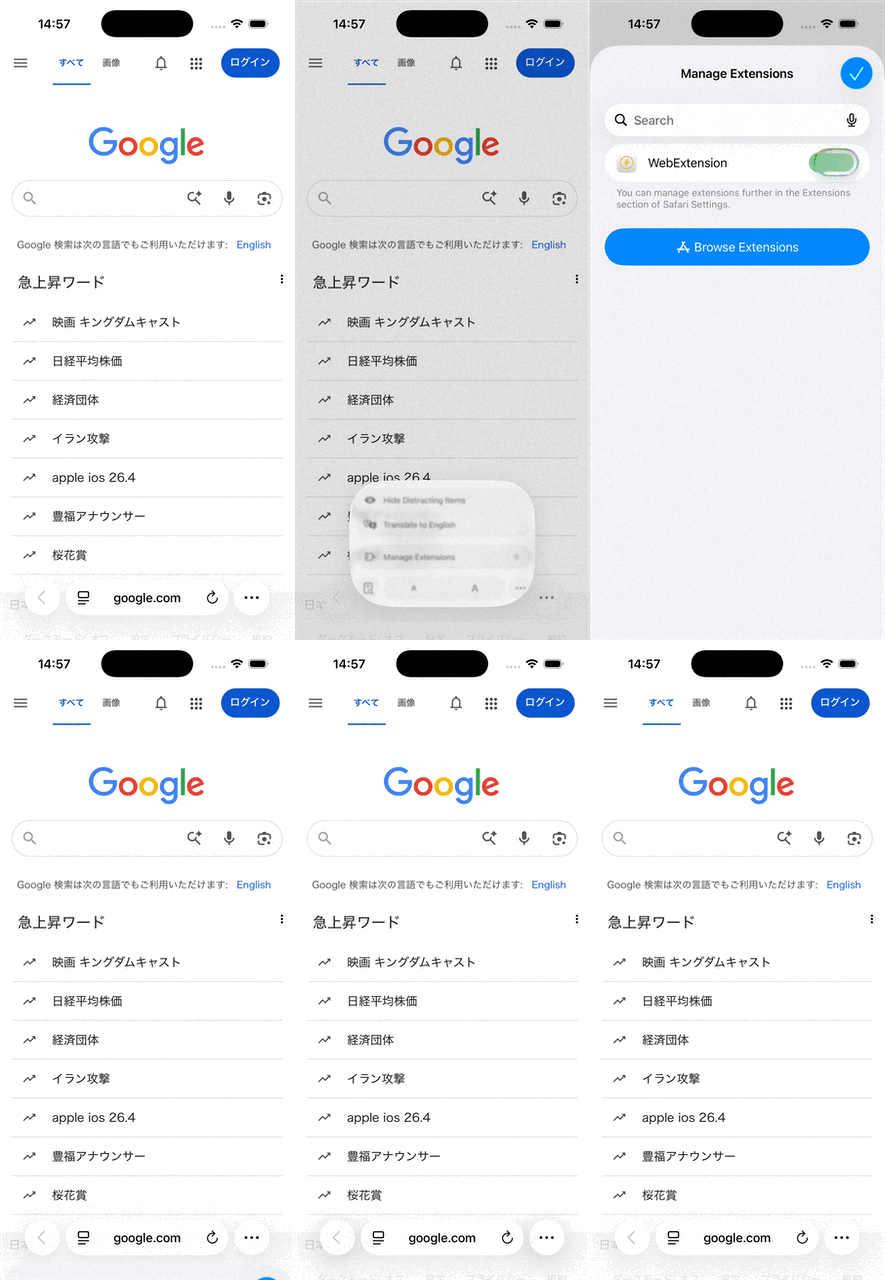
Debug Safari Web Extension
We see what we had in that popup.html, but if we take a look at those js file, there are a bunch of console.logs, how do we check those out?
Here is the full reference: Inspecting iOS and iPadOS, but let’s go through it together here again!
Enable Web Inspector
Settings App > Safari > Advanced (at the super bottom) > Web Inspector
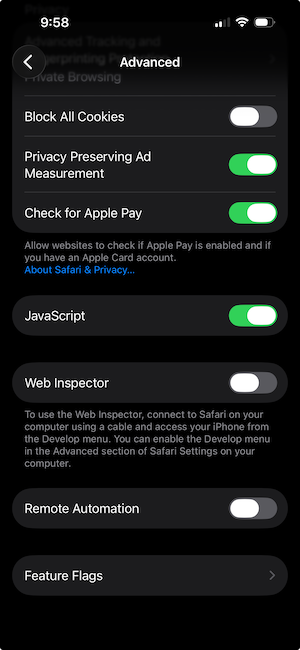
NOTE! This is only required for a REAL device. For simulators, web Inspector is always enabled.
Inspecting Any Webpage
Webpages we open in Safari in iOS and iPadOS appear in a submenu for the connected device of the Develop menu of Safari on a connected Mac.
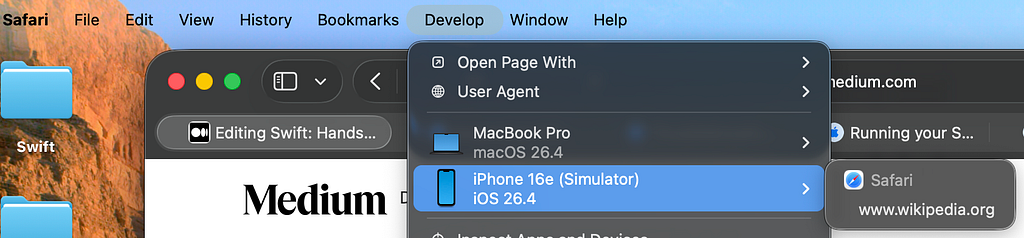
If you are not seeing the device showing up and you DO have Safari opened with a specific webpage.
- Quit Safari (on the mac) COMPLETELY
- Launch (or relaunch) the Simulator, Open a Webpage First: Ensure the iOS Simulator is running and has Safari open to the webpage before you launch Safari on the Mac.
- Launch the Mac side Safari
Now, if we click on that link under the submenu, for me wikipedia, we should see the web inspector for that page pop up.
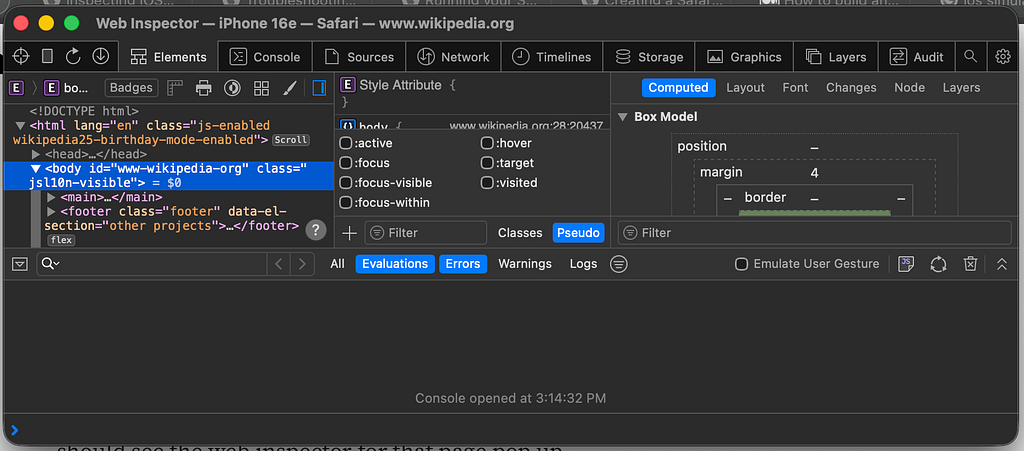
Inspect Background.js & Popup.js
If we have the extension enabled and popup shown, in addition to the page itself, we should also see some thing like <extension_name> — Extension Background Page or Popup Page.
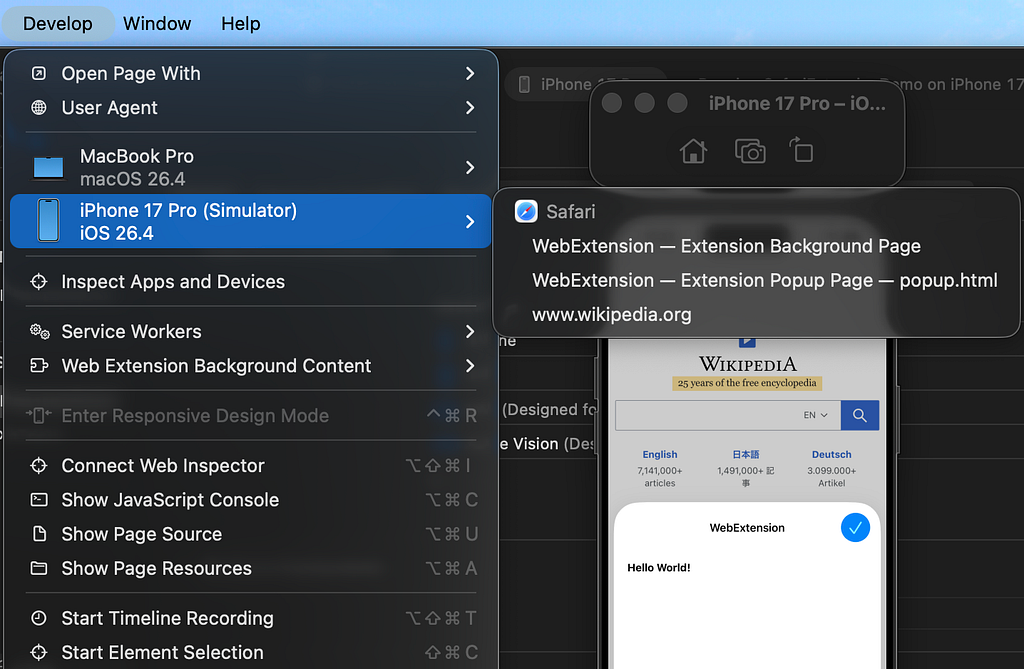
And I hope the name is self-explanatory, but
- Background Page > background.js
- Popup Page > popup.html/js/css
Inspect Content Script
What about Content scripts?
Since that’s the script that will be making modifications directly to the browser tab, it is injected into the opened tab, in my case wikipedia.
However, before it can show up there (be injected), we will actually need modify our manifest.json a bit, specifically, the content_script key.
Here is what we currently have which means our content.js will only be injected into example.com tabs!
"content_scripts": [{
    "js": [ "content.js" ],
    "matches": [ "*://example.com/*" ]
}],
let’s change it to <all_urls> to match everything and re-run the app
"content_scripts": [{
    "js": [ "content.js" ],
    "matches": [ "<all_urls>" ]
}],
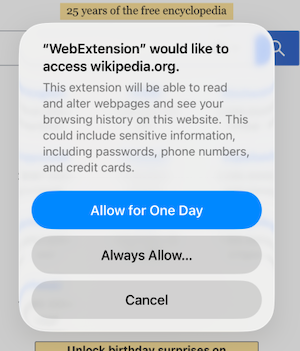
Give the extension the permission.
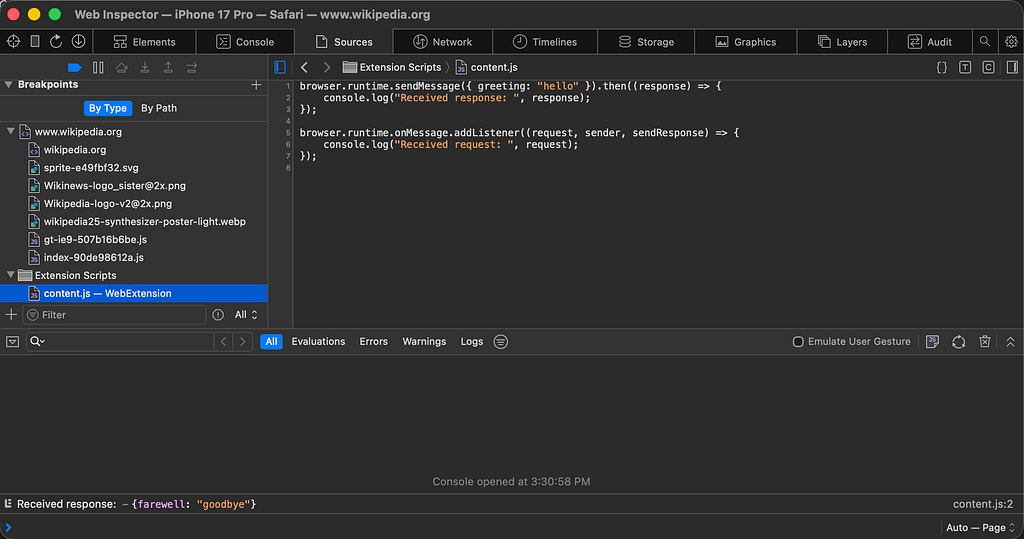
And if we open up the inspector for the webpage, wikipedia for me, here we go! content.js under the Extension Scripts folder.
Code Time
That’s a pretty long introduction!
Time to write some code!
What are we making?
A color-inversion extension to invert the color of the page.
Where the setting of whether to invert or not are synchronized across the App and the browser, and can be set from either the browser or the app!
So!
There are couple communications here!
- Extension ↔ container app. Purely swift, done by the App Group, we all knew that by now! (Swift: Sharing Data Between Apps/Extensions With App Group)
- Content script →Background worker →App: Get current enabled state.
- Popup → Background worker → App & Content Script: Toggle the enabled state from the browser
- App → (?) Content Script: Toggle the enabled state from the app. Why do I have a question mark here? We will see!
Background vs content vs popup scripts
Before we start, let’s quick check out the difference usage of all three scripts in case you are wondering why do I have that background worker as an intermediary point above.
Background
Long running script without any visible UI, used for
- Responding to Events: Listening for events like tabs.onUpdated, onMessage, and etc.
- Interacting with APIs: storage, alarms, contextMenus, tabs, many of which are not available to content scripts.
- Long-Running Tasks: Although they are event-driven, they can handle asynchronous tasks or offscreen documents for actions requiring longer lifecycles.
Content script
Modify the actual web content (DOM).
Popup Script
Modify the content of the popup (UI panel), primarily to handle user interactions within that UI.
They cannot communicate directly with the content script or the app but will have to go through the background workers.
App Side Set Up
Just the user defaults for storing the value (assuming you already get your app group set up) and a little enum for messaging.
import Foundation

let group = "group.itsuki.safari.extension"

enum UserDefaultsKey: String, CaseIterable {
    case colorInvertEnabled

    static let userDefaults = UserDefaults(suiteName: group) ?? .standard

    var key: String {
        return self.rawValue
    }

    func setValue(value: Any?) {
        Self.userDefaults.setValue(value, forKey: self.key)
    }

    func getValue() -> Any? {
        return Self.userDefaults.object(forKey: self.key)
    }
}

enum MessageType: String {
    case getEnabled
    case toggleEnabled
}
Messaging Container App
Here is where the messaging to the Native App and the Content Script happens.
To Send messages from JavaScript to the app, we will be using the browser.runtime.sendNativeMessage API.
let sending = browser.runtime.sendNativeMessage(
  applicationId, // string
  message // object
)
Safari ignores the application.id parameter and only sends the message to the containing app’s native app extension so we can leave it out.
For example to get the current enabled state.
browser.runtime.sendNativeMessage(
  { type: "getEnabled" },
  function (response) {
    console.log("Received sendNativeMessage response: \n", response);
  },
);
The message here can really be anything (object), the keys and values of your choice.
This API is only for background scripts and therefore when our content script needs to get the current state of whether color invert is enabled or not, it has to send a message to the background worker, and wait for a response. We will do this in couple seconds.
Now, to be able to use native messaging, we will also have to add in the permission to our manifest.json.
// manifest.json
"permissions": [ "nativeMessaging" ]
Receiving Message in Container App
Now that we have sent a message, time to receive it and provide some useful response!
beginRequest:with: function is what we need and is actually already somewhat implemented for us in the SafariWebExtensionHandler.swift.
class SafariWebExtensionHandler: NSObject, NSExtensionRequestHandling {

    func beginRequest(with context: NSExtensionContext) {
        print((context.inputItems.first as? NSExtensionItem)?.userInfo as Any)

        guard let item = context.inputItems.first as? NSExtensionItem,
            // background.js: browser.runtime.sendNativeMessage({type: "getEnabled"}...)
            // -> userInfo: "message": { type = getEnabled }
            let userInfo = item.userInfo as? [String: Any],
            let message = userInfo[SFExtensionMessageKey] as? [String: String],
            let rawType = message["type"],
            let type = MessageType(rawValue: rawType)
        else {
            context.completeRequest(returningItems: nil, completionHandler: nil)
            return
        }

        print(
            "Received message from browser.runtime.sendNativeMessage",
            message
        )

        let response = NSExtensionItem()

        let enabled =
            UserDefaultsKey.colorInvertEnabled.getValue() as? Bool ?? false
        if type == .getEnabled {
            response.userInfo = [SFExtensionMessageKey: ["enabled": enabled]]
        } else {
            UserDefaultsKey.colorInvertEnabled.setValue(value: !enabled)
            response.userInfo = [SFExtensionMessageKey: ["enabled": !enabled]]
        }

        context.completeRequest(
            returningItems: [response],
            completionHandler: nil
        )
    }
}
The toggleEnabled case is simple so I have already added above but you can ignore it for now…
Content Script <> Background Workers
As I have mentioned, the browser.runtime.sendNativeMessage is only available to background.js but the script that ACTUALLY needs the enabled state is the content script so that we can modify the DOM of the document based on it!
To achieve that, we send a message from content.js to background.js using the browser.runtime.sendMessage API, and wait for a response.
// content.js
function enableColorInvert() {
  document.documentElement.style.filter = "invert(1) hue-rotate(180deg)";
}

function disableColorInvert() {
  document.documentElement.style.filter = "";
}

function checkColorInvertSetting() {
  browser.runtime.sendMessage({ type: "getEnabled" }).then((response) => {
    console.log("Received response: ", response);
    response.enabled === true ? enableColorInvert() : disableColorInvert();
  });
}

// check invert enabled on page load
checkColorInvertSetting();
And in our background.js, we listen to the message, call the sendNativeMessage accordingly, and echo the response from the App back to the content script.
// background.js
browser.runtime.onMessage.addListener((request, sender, sendResponse) => {
  console.log("Received request: ", request);

  // message from content.js
  if (request.type === "getEnabled") {
    // send message to iOS App Side
    browser.runtime.sendNativeMessage(
      { type: "getEnabled" },
      function (response) {
        console.log("Received sendNativeMessage response: \n", response);
        // send message to content.js
        sendResponse({
          "enabled": response.enabled,
        });
      },
    );
  }

  return true;
});
Popup > App
I want a toggle in the popup so that the user can invert the color without having to open up the app every time!
Obviously, if our content script cannot message the app directly, there is no way the popup will be able to do that.
However, in addition to not able to contact the app, it also won’t be able to contact the content script!
So! Again, our background worker comes into place.
The logic is the same as above, send a message from popup to background worker,
// popup.js
function toggleInvert() {
  browser.runtime.sendMessage({ type: "toggleEnabled" });
}

document.getElementById("toggle").addEventListener("click", toggleInvert);
and have the worker to spread the message! To the content script (of the active tab), to the app!
// background.js

// extension -> app
browser.runtime.onMessage.addListener((request, sender, sendResponse) => {
  console.log("Received request: ", request);

  // message from content.js
  if (request.type === "getEnabled") {
    // ... code above
  }

  // message from popup.js
  if (request.type === "toggleEnabled") {
    const message = {
      type: "toggleEnabled",
    };
    // send message to iOS App Side
    browser.runtime.sendNativeMessage(message);

    // send message to content js for the active tab
    // browser.runtime.sendMessage(message);
    browser.tabs.query({ active: true, currentWindow: true }, (tabs) => {
      if (tabs[0]) {
        browser.tabs.sendMessage(tabs[0].id, message);
      }
    });
  }

  return true;
});
App To Extension?
We are going to have a toggle in the app as well!
Which means we need to notify the extension of the change?
Do we Actually?
In the case of a Extension for Mac Safari, yes, because we can have multiple windows opened side by side.
And there is indeed an API For that. The dispatchMessage for SFSafariApplication (Mac ONLY).
However, for iOS, not really! (And we don’t have an Swift API for that either)
If the user open our app, the browser is entering background what so ever! So all we need is a listener of visibility change and ask the app for the state just like above when the page becomes visible, with our checkColorInvertSetting!
// content.js

// check invert enabled on page enter foreground
// for iOS (different from macOS), there isn't an API to send message from app to extension
// However, we also won't need it because there won't be multiple apps opened (in foreground) simultaneously
document.addEventListener("visibilitychange", () => {
  console.log("visibilitychange: ", document.visibilityState);
  if (document.visibilityState === "visible") {
    checkColorInvertSetting();
  }
});
Full Code
Yes! That’s it! We have achieved all the communications we want to have. Time to put everything together and give it a try!
UserDefaultsKey
With both the container app and the extension added as target.
import Foundation

let group = "group.itsuki.safari.extension"

enum UserDefaultsKey: String, CaseIterable {
    case colorInvertEnabled

    static let userDefaults = UserDefaults(suiteName: group) ?? .standard

    var key: String {
        return self.rawValue
    }

    func setValue(value: Any?) {
        Self.userDefaults.setValue(value, forKey: self.key)
    }

    func getValue() -> Any? {
        return Self.userDefaults.object(forKey: self.key)
    }
}
Main App: Content View
Just a toggle toggling the UserDefaults value!
//
//  ContentView.swift
//  SafariExtensionDemo
//
//  Created by Itsuki on 2026/03/26.
//

import SwiftUI
import SafariServices

struct ContentView: View {
    @AppStorage(UserDefaultsKey.colorInvertEnabled.key, store: UserDefaultsKey.userDefaults) var enabled: Bool =
        false

    var body: some View {
        NavigationStack {
            VStack(spacing: 48) {
                VStack(spacing: 12) {
                    Text("Communication")
                        .font(.title2)
                        .fontWeight(.bold)
                    Text("Popup <> Content Script <> Background Worker <> App")
                        .font(.headline)
                        .multilineTextAlignment(.center)
                }

                Toggle(
                    isOn: $enabled,
                    label: {
                        Text("Enabled")
                            .fontWeight(.medium)
                        Text("Toggle to invert webpage colors.")
                    }
                )
                .padding(.horizontal, 16)
            }
            .padding()
            .frame(maxWidth: .infinity, maxHeight: .infinity)
            .background(.yellow.opacity(0.1))
            .navigationTitle("Safari Extension")
            .navigationBarTitleDisplayMode(.large)
        }
    }
}
Extension: SafariWebExtensionHandler
import SafariServices

enum MessageType: String {
    case getEnabled
    case toggleEnabled
}

class SafariWebExtensionHandler: NSObject, NSExtensionRequestHandling {

    func beginRequest(with context: NSExtensionContext) {
        print((context.inputItems.first as? NSExtensionItem)?.userInfo as Any)

        guard let item = context.inputItems.first as? NSExtensionItem,
            // background.js: browser.runtime.sendNativeMessage({type: "getEnabled"}...)
            // -> userInfo: "message": { type = getEnabled }
            let userInfo = item.userInfo as? [String: Any],
            let message = userInfo[SFExtensionMessageKey] as? [String: String],
            let rawType = message["type"],
            let type = MessageType(rawValue: rawType)
        else {
            context.completeRequest(returningItems: nil, completionHandler: nil)
            return
        }

        print(
            "Received message from browser.runtime.sendNativeMessage",
            message
        )

        let response = NSExtensionItem()

        let enabled =
            UserDefaultsKey.colorInvertEnabled.getValue() as? Bool ?? false
        if type == .getEnabled {
            response.userInfo = [SFExtensionMessageKey: ["enabled": enabled]]
        } else {
            UserDefaultsKey.colorInvertEnabled.setValue(value: !enabled)
            response.userInfo = [SFExtensionMessageKey: ["enabled": !enabled]]
        }

        context.completeRequest(
            returningItems: [response],
            completionHandler: nil
        )
    }
}
Extension: background.js
// extension -> app
browser.runtime.onMessage.addListener((request, sender, sendResponse) => {
  console.log("Received request: ", request);

  // message from content.js
  if (request.type === "getEnabled") {
    // send message to iOS App Side
    browser.runtime.sendNativeMessage(
      { type: "getEnabled" },
      function (response) {
        console.log("Received sendNativeMessage response: \n", response);
        // send message to content.js
        sendResponse({
          "enabled": response.enabled,
        });
      },
    );
  }

  // message from popup.js
  if (request.type === "toggleEnabled") {
    const message = {
      type: "toggleEnabled",
    };
    // send message to iOS App Side
    browser.runtime.sendNativeMessage(message);

    // send message to content js for the active tab
    // browser.runtime.sendMessage(message);
    browser.tabs.query({ active: true, currentWindow: true }, (tabs) => {
      if (tabs[0]) {
        browser.tabs.sendMessage(tabs[0].id, message);
      }
    });
  }

  return true;
});
Extension: content.js
// listener to receive message from background.js
// for handling toggle button in popup.js
browser.runtime.onMessage.addListener(
  (request, _sender, _sendResponse) => {
    console.log("Received request: ", request);
    if (request.type === "toggleEnabled") {
      toggleInvert();
    }
  },
);

function enableColorInvert() {
  document.documentElement.style.filter = "invert(1) hue-rotate(180deg)";
}

function disableColorInvert() {
  document.documentElement.style.filter = "";
}

function toggleInvert() {
  const enabled = document.documentElement.style.filter.includes("invert");
  if (enabled === true) {
    disableColorInvert();
  } else {
    enableColorInvert();
  }
}

function checkColorInvertSetting() {
  browser.runtime.sendMessage({ type: "getEnabled" }).then((response) => {
    console.log("Received response: ", response);
    response.enabled === true ? enableColorInvert() : disableColorInvert();
  });
}

// check invert enabled on page enter foreground
// for iOS (different from macOS), there isn't an API to send message from app to extension
// However, we also won't need it because there won't be multiple apps opened (in foreground) simultaneously
document.addEventListener("visibilitychange", () => {
  console.log("visibilitychange: ", document.visibilityState);
  if (document.visibilityState === "visible") {
    checkColorInvertSetting();
  }
});

// check invert enabled on page load
checkColorInvertSetting();
Extension: popup.js
function toggleInvert() {
  browser.runtime.sendMessage({ type: "toggleEnabled" });
}

document.getElementById("toggle").addEventListener("click", toggleInvert);
Extension: popup.css
:root {
  color-scheme: light dark;
}

body {
  background-color: rgba(255, 255, 0, 0.1);
  padding: 10px;
  font-family: system-ui;
  text-align: center;
}

button {
  padding: 10px 16px;
  font-size: 16px;
  cursor: pointer;
}

@media (prefers-color-scheme: dark) {
  /* Dark Mode styles go here. */
}
Extension: popup.html
<!DOCTYPE html>
<html>
<head>
<meta charset="UTF-8">
<link rel="stylesheet" href="popup.css">
<script type="module" src="popup.js"></script>
</head>
<body>
<h1>Hello From Itsuki! 👋</h1>
<p>Click the button to invert page colors.</p>
<p> </p>
<p> </p>
<button id="toggle">Toggle Invert</button>
</body>
</html>
Extension: manifest.json
{
  "manifest_version": 3,
  "default_locale": "en",

  "name": "__MSG_extension_name__",
  "description": "__MSG_extension_description__",
  "version": "1.0",

  "icons": {
    "48": "images/icon-48.png",
    "96": "images/icon-96.png",
    "128": "images/icon-128.png",
    "256": "images/icon-256.png",
    "512": "images/icon-512.png"
  },

  "background": {
    "scripts": ["background.js"],
    "type": "module"
  },

  "content_scripts": [{
    "js": ["content.js"],
    "matches": ["<all_urls>"]
  }],

  "action": {
    "default_popup": "popup.html",
    "default_icon": "images/toolbar-icon.svg"
  },

  "permissions": ["nativeMessaging"]
}
TRY!
Thank you for reading!
That’s it for this article! Again, everything on GitHub!
Happy communicating/messaging!
Swift: Safari Web Extensions From 0 to 0.01 was originally published in Level Up Coding on Medium, where people are continuing the conversation by highlighting and responding to this story.