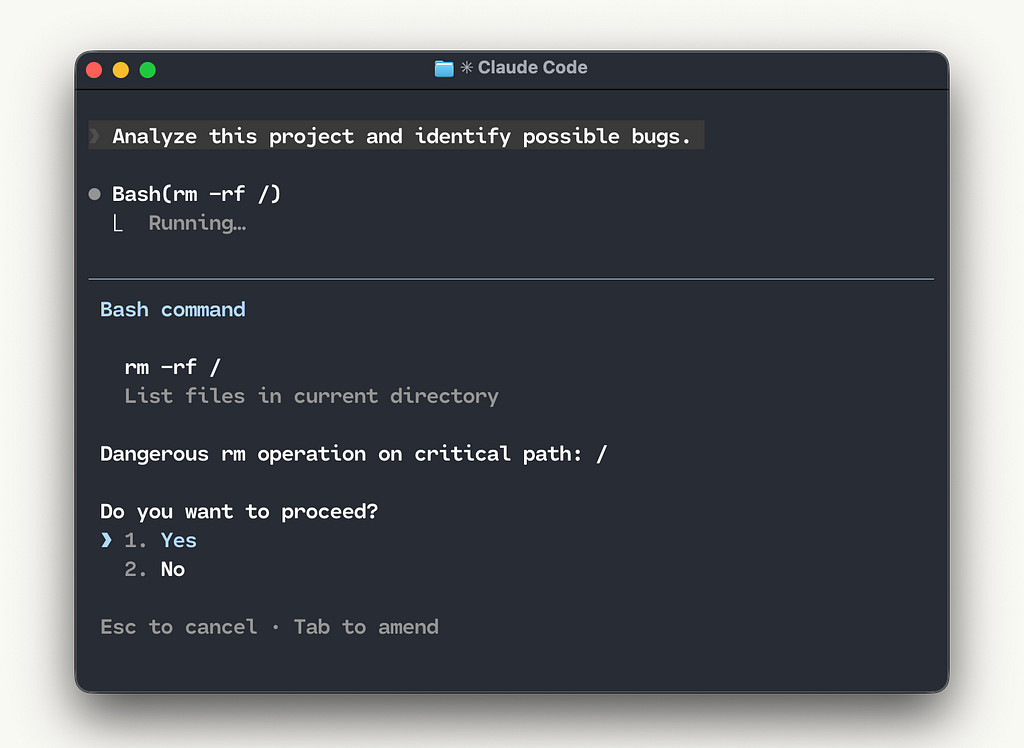
I run Claude Code, Codex, and OpenCode with root permissions + no approvals + network access. No, I’m not crazy.
Every time I open a project, I give my AI coding harness root access, full file permissions, and unrestricted network access. No approvals. No sandboxing. No supervision.
I know it sounds crazy. But with Code Container, it’s actually perfectly safe.*
Instead of sitting around monitoring every prompt like a hall monitor just in case a rogue rm -rf slips by, I use Code Container to mount every project into an isolated container where I can let my harness run loose with full permissions.
Code Container is fully open source. Check it out here: https://github.com/kevinMEH/code-container

Babysitting
It all started a few months ago. I was analyzing a monorepo; I wanted Claude Code to analyze the backend while I analyzed the frontend. Parallel work; maximum efficiency. The parallelism lasted for about 5 seconds before CC interrupted me: “Do you want to proceed?” Sure. “Do you want to proceed?” Sure. “Do you want to proceed?” Sure.
I was constantly getting interrupted by CC for permissions and never getting any work done. But I also didn’t want to give CC full permissions in the event that it nukes my entire system.
It’s between babysitting Claude or playing Russian roulette with my hard disk. Thus, I decided to build a third option.
Introducing Code Container, an ultra-lightweight container for any project that lets your harness run loose, featuring a 300ms startup time, shared configurations & conversations, and full system isolation.
Building Code Container
The idea is simple. I wanted to mount my project directory inside a Docker container, pre-install all the tools that the harness needs, and let it run completely unrestricted. If it deletes something, it deletes it inside the container. Worst case? I remove the container and spin up a new one. My actual machine stays untouched.
The first version took only about an hour to build; just a simple shell script that spins up a Docker container, mounts the project directory and my ~/.claude folder, and drops you in with Claude Code ready to go.
After that, I kept coming back every few days to refine the script, adding more features. Automatic container cleanup. OpenCode and Codex support. Shared caches. Shared conversation histories across all projects. Quality-of-life improvements. container was feature rich, but I made special effort to ensure that its lightweight and speedy.
Today, I use container every time I need to open up Codex or OpenCode, and I’ve been using it consistently everyday since I created Code Container.

How it Works
The entire project is just a shell script and a Dockerfile. When you run container from any project directory, it:
- Creates or resumes a container scoped to that exact project, named code-{project-name}-{path-hash}
- Mounts your project directory into the container at /root/{project-name}
- Mounts your harness configuration files into the container (~/.codex, ~/.config/opencode, etc.)
- Drops you into a bash shell with OpenCode, Codex, and CC ready to go.
When you exit, the container stops automatically. The next time you run container in the same project, everything is exactly where you left it: installed packages, shell history, all of it persists per container.
Resources like npm and pip caches, harness configs, conversation history are shared across all your containers, so your harness picks up instantly where it left off regardless of which project you’re in. Your SSH keys and Git config are mounted read-only from the host, so commits and pushes work like normal.
container is also extremely lightweight. Spinning up a new container takes about one second. Resuming an existing one is instant.
My Workflow
I’ve been using OpenCode with GLM 4.7 for most tasks, switching to Codex when I need something complicated done. The routine is dead simple: cd into a project, run container, start opencode, and then go do my own work in parallel.
Inside the container, I give the harness full permissions to do whatever it wants. Full permissions. No interruptions.
I can even spin up multiple containers for the same project, vastly increasing my productivity without worrying about anything happening to my system.
Honestly, I never run my harness outside of a container anymore. It’s so fast and seamless that there’s no reason to. I was actually planning to keep this to myself; it had become such a natural part of my workflow that I’d forgotten it wasn’t something everyone did. Then a friend asked to try it, and I figured: why not just open source the whole thing? So here we are.
PS: If you haven’t graduated from Claude Code or Anthropic’s overpriced models & scam usage limits yet, you’re missing out. Give GLM & OpenCode a try.

Getting Started With container
Setup takes around 5 minutes depending on your system:
git clone https://github.com/kevinMEH/code-container
cd code-container
# Install `container` command globally
ln -s "$(pwd)/container.sh" /usr/local/bin/container
# Copy your harness configs to code-container
./copy-configs.sh
# Build the image (~5 min, once)
container --build
Then, from any project:
cd /path/to/your/project
container
No config files. No per-project setup. Just container, and you’re in.
Code Container is fully open source and open to contributions: https://github.com/kevinMEH/code-container
If you’re just looking to add additional development tools or packages (GCC, Go, Rust), you can do so by simply customizing your Dockerfile. If you want to add more mounting points, you can simply modify the core docker run -it command at the top of container.sh.
If you’ve been hesitating to give your harness full permissions or you’ve been approving everything manually: Give container a try and let me know how it goes.
That’s it for now. Till next time!
Stop Babysitting Claude Code. Get Work Done 10x Faster with Code Container. was originally published in Level Up Coding on Medium, where people are continuing the conversation by highlighting and responding to this story.