
Online board DGRM.net caches files in a persistent cache. The persistent cache isn’t deleted when you close a tab. I’ll explain how to store large files in your browser.
File cache on origin private file system (OPFS)
A persistent file cache can be created using the cache API, indexedDB, or OPFS. OPFS is considered the fastest. OPFS is a virtual file system. You can create files and folders. Other websites will not have access to your files.
Writing files to OPFS
You can get a link to a file on the user’s device using HTMLInputElement. This will prevent the file data from being loaded into memory.
/**
 * @param {string} [accept]
 * @returns {Promise<File>}
 */
const fileInputOpen = accept => new Promise((resolve, reject) => {
    const input = document.createElement('input');
    input.type = 'file';
    input.multiple = false;
    input.accept = accept;
    input.style.display = 'none';
    document.body.appendChild(input);

    const dispose = () => input?.remove();

    input.oncancel = () => {
        resolve(null);
        dispose();
    };
    input.onchange = () => {
        resolve((!input.files?.length) ? null : input.files[0]);
        dispose();
    };

    input.click();
});
Listing 1. Getting a link to a file
Writing a file to OPFS — Listing 2.
/**
 * @param {string} fileName
 * @param {Blob} blob
 */
const fileAdd = async (fileName, blob) => {
    const dir = await navigator.storage.getDirectory();

    const writable =
        await (await dir.getFileHandle(fileName, { create: true }))
            .createWritable();

    // (1)  FireFox will load all file into memory
    //      Chrome drop exception
    // await writable.write(await blob.bytes());

    // (2)  very slow in FireFox
    // await writable.write(blob);

    // (3)  works in Chrome and FireFox.
    //      In Chrome slower then (2)
    await blob.stream().pipeTo(writable, { preventClose: true });

    await writable.close();
};
Listing 2. Writing a file to OPFS
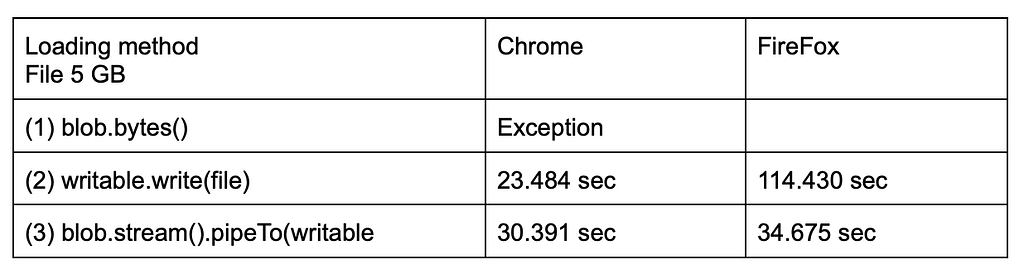
Listing 2 shows three file copy options in OPFS. I tested this on a 5 GB file on Windows 11 and Ubuntu.
Option (1) blob.bytes()
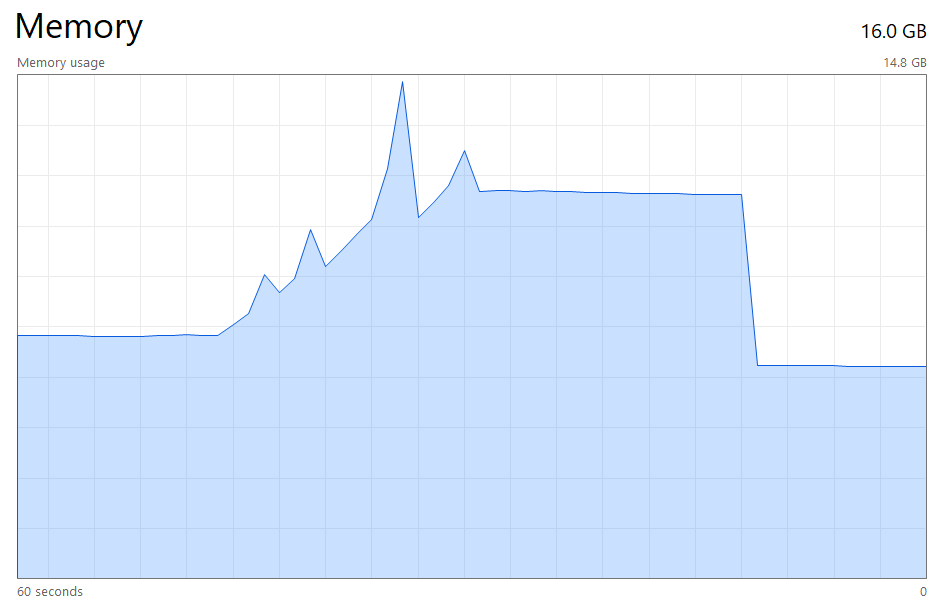
Option (1) shows loading the entire file into memory. RAM consumption is clearly visible (Figure 2). Firefox on Windows will load the entire file into memory, while on Ubuntu it will load 2 GB into memory and throw an exception. Chrome will throw an exception.
Option (2) writable.write(blob)
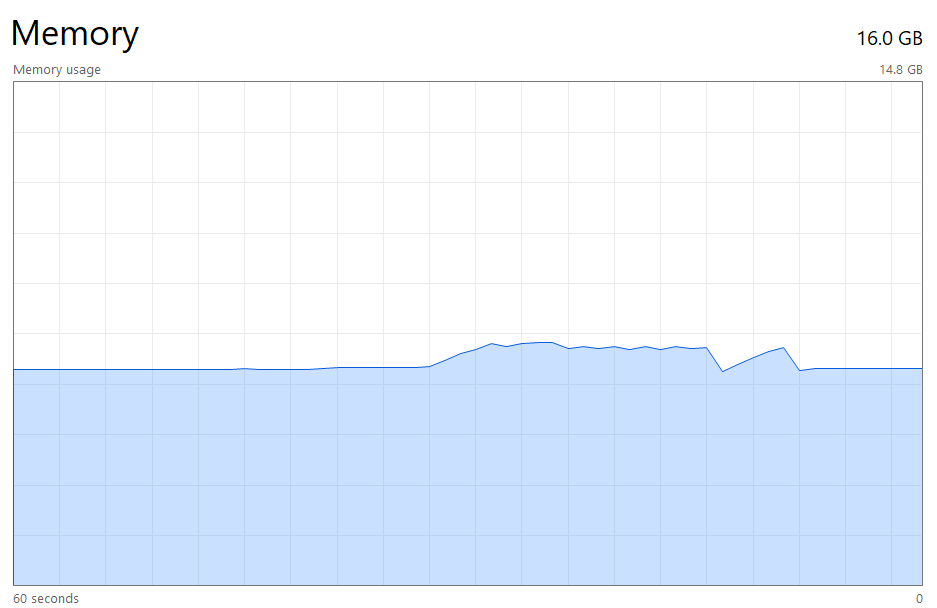
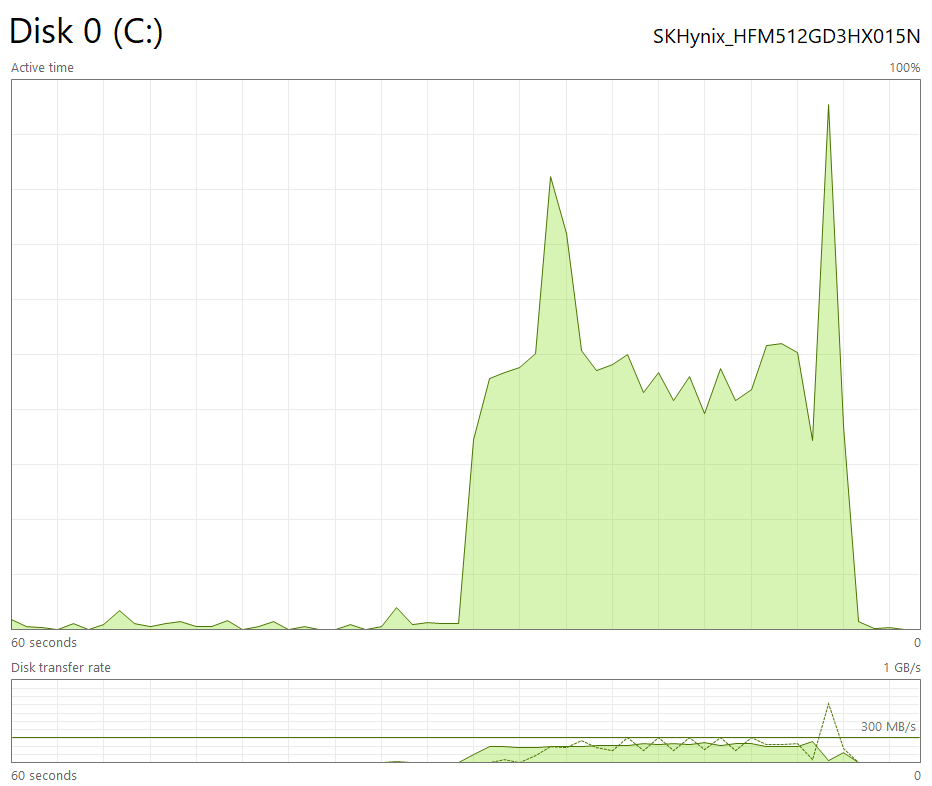
(2) Works quickly in Chrome — 23 seconds. In Firefox, it’s very slow — over a minute. The file isn’t loaded into memory entirely, but is copied in chunks — see Figures 3 and 4. The graphs are similar in Chrome and Firefox, only the time in Firefox is stretched.
Option (3) blob.stream().pipeTo(writable)
Works well in Chrome and Firefox. In Chrome, it’s slower than (2). The graphs are similar to (2). Option (3) with pipeTo turned out to be better (Table 1).
Writing a portion of a file to OPFS
To write a portion of a file to OPFS, use blob.slice(). Listing 3 — writing a portion of a file to OPFS without loading the entire file into memory.
const file = await fileInputOpen();
if (!file) { return; }

await fileAdd(
    file.name,
    // upload second byte
    file.slice(1, 2));
Listing 3. Writing part of a file to OPFS without loading the entire file into memory
For information on how to store a lot of different data in one large file, see the first part of the article.
Reading from OPFS
A file from OPFS can be output to an image, <audio>, <video> — listing 4.
const img =
    /** @type {HTMLImageElement} */(document.getElementById('img'));

const dir = await navigator.storage.getDirectory();
img.src = URL.createObjectURL(
    await (await dir.getFileHandle('1.png')).getFile()
);

// don't forget to revoke object url when delete img
// URL.revokeObjectURL(img.src)
Listing 4. Displaying an image from OPFS
Downloading a file from OPFS — Listing 5.
/**
 * @param {Blob} blob
 * @param {string} name
 */
const fileDownload = (blob, name) => {
    const link = document.createElement('a');
    link.download = name;
    link.href = URL.createObjectURL(blob);
    link.click();
    URL.revokeObjectURL(link.href);
    link.remove();
};

//
// usage

const dir = await navigator.storage.getDirectory();
fileDownload(
    await (await dir.getFileHandle('big.zip')).getFile(),
    'big.zip'
);
Listing 5. Downloading a file from OPFS
Google claims you can download files up to 1 GB this way. In reality, 5 GB downloads are no problem in Chrome and Firefox on Windows and Ubuntu. RAM consumption doesn’t increase.
Creating files on the user’s device
Chrome can write files directly to the user’s file system. Writing to a file can be done in chunks; the API is the same as in OPFS — Listing 6.
if (window['showSaveFilePicker']) {
    /** @type {FileSystemFileHandle} */
    const file =
        // @ts-ignore
        await window.showSaveFilePicker({
            suggestedName: 'my.png' });

    const writable = await file.createWritable();

    // write your data
    // await blob1.stream().pipeTo(writable, { preventClose: true });
    // await blob2.stream().pipeTo(writable, { preventClose: true });

    await writable.close();
}
Listing 6. Creating a file on the user’s device
In other browsers, you will have to create a temporary file in OPFS and download it using a link — see Listing 5.
Self-promotion
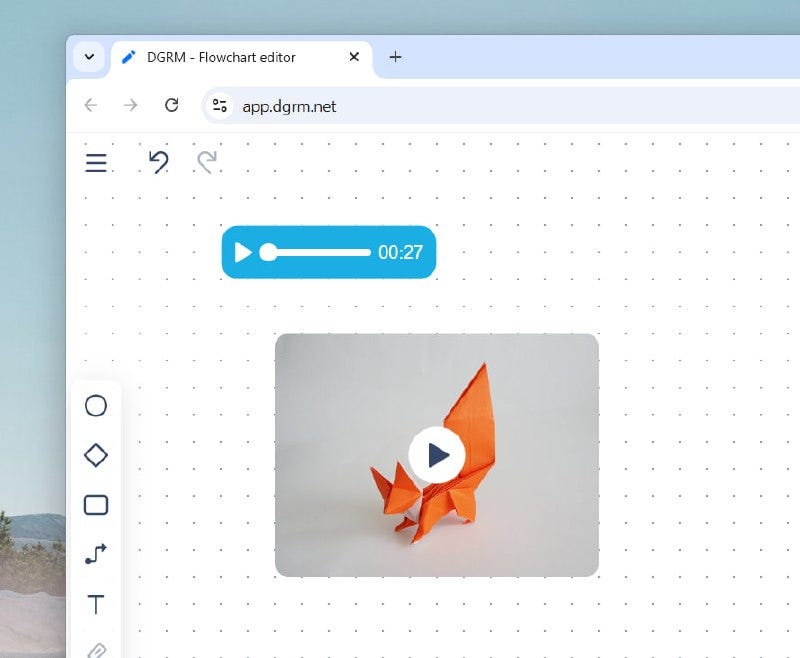
Recently added to DGRM.net audio and video. I use it for guitar lessons — it’s convenient. Give it a try.
JavaScript: Working with Large Files in the Browser. Creating 5GB Files in the Browser was originally published in Level Up Coding on Medium, where people are continuing the conversation by highlighting and responding to this story.
