How to Move WEB3 Assets from one Chain to another Chain
 NeoSoul3 min read·Just now
--
This guide uses BNB Chain to 0G Chain as an example.
If your assets are on another supported network, select your own source network instead.
You will need the native gas token of that network to pay transaction fees.
Step 1: Prepare BNB for Gas
Make sure your wallet has some BNB on BNB Chain.
BNB is used to pay the gas fees for the swap and cross-chain transaction.
Step 2: Swap Your BNB Chain Assets into 0G
Select the asset you want to swap from on BNB chain, such as BNB, USDT, or USDC.
Select 0G on BNB Chain as the token you want to receive. Example from OKX Wallet
Enter the amount.
Check the swap details.
Confirm the transaction in your wallet.
The gas fee will be paid in BNB.
Step 3: Open 0G Hub
Open 0G Hub
Connect your wallet.
Make sure your wallet is connected to BNB Chain.
Step 4: Select Cross-Chain Swap
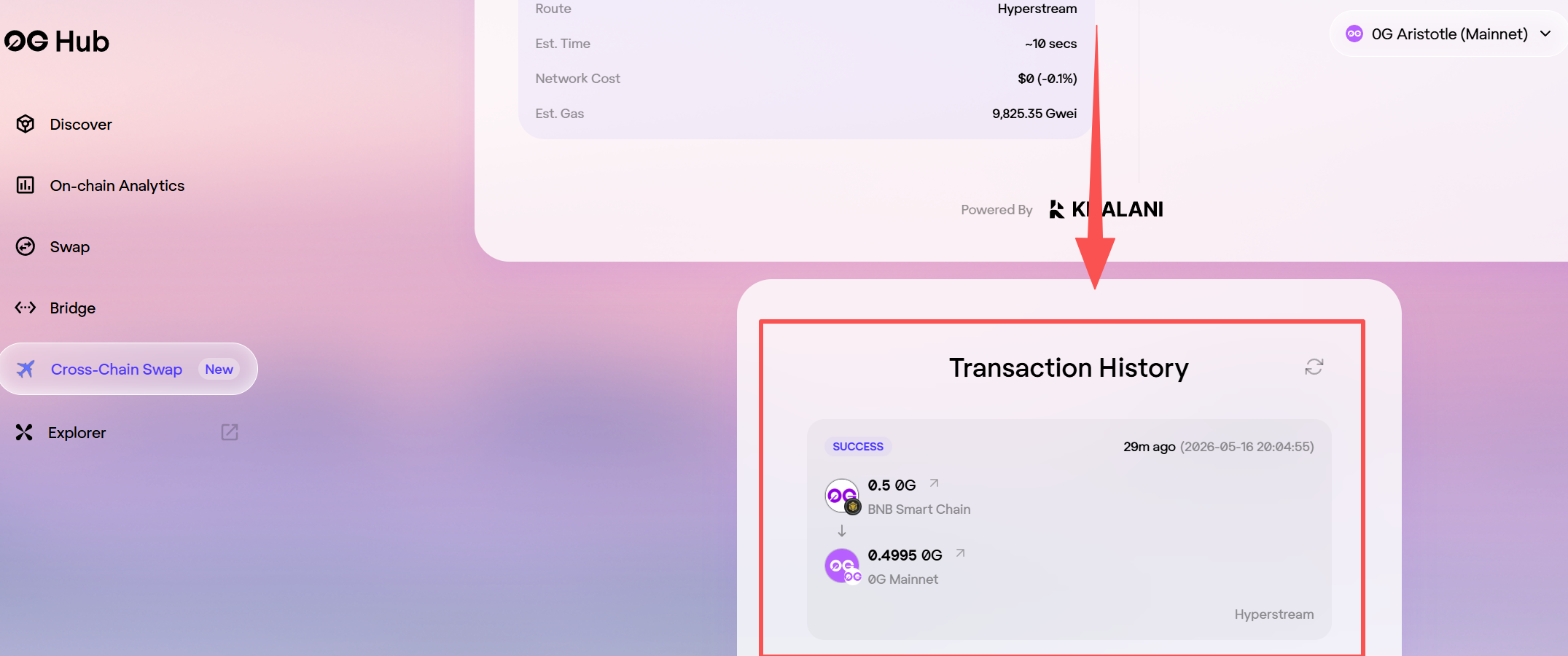
On the left menu, select Cross-Chain Swap.
This is the option used to move assets from BNB Chain to 0G Chain.
Step 5: Cross-Chain Swap 0G to 0G Chain
use Cross-Chain Swap to move it to 0G Chain.
Set the route as:
From: BNB Chain Token: 0G
To: 0G Chain Token: 0G
The gas fee will be paid in BNB.
The Result and Transaction History sections are at the bottom of the page.
Step 6: Check Your 0G Balance
After the transaction is completed, switch your wallet to 0G Chain.
Your 0G should appear on 0G Chain.
Safety Reminder
Use the Cross-Chain Swap option on the left menu.
Keep enough BNB for gas.
Check the source chain, destination chain, token, and wallet address before confirming.
Try a small amount first if this is your first time using it.