Today, I will outline a detailed, step-by-step approach to enable Firebase Crashlytics bug reports to be delivered directly to a Slack channel of your choice within your Slack workspace

Why is this important?
“ Getting real-time alerts via Slack when your mobile app crashes anywhere in the world is crucial. This allows you to promptly follow up and address issues as they occur, ensuring rapid response times. ”
Note: I’m assuming you already have a slack workspace and a channel in mind that you will like to use, so let’s get started!
Steps to achieve this motive goes as follows:
- Create a webhook URL for your slack workspace
- Add your slack webhook URL to Firebase console, and enable the feature
- Send a Test bug report
Create a slack webhook URL for your workspace
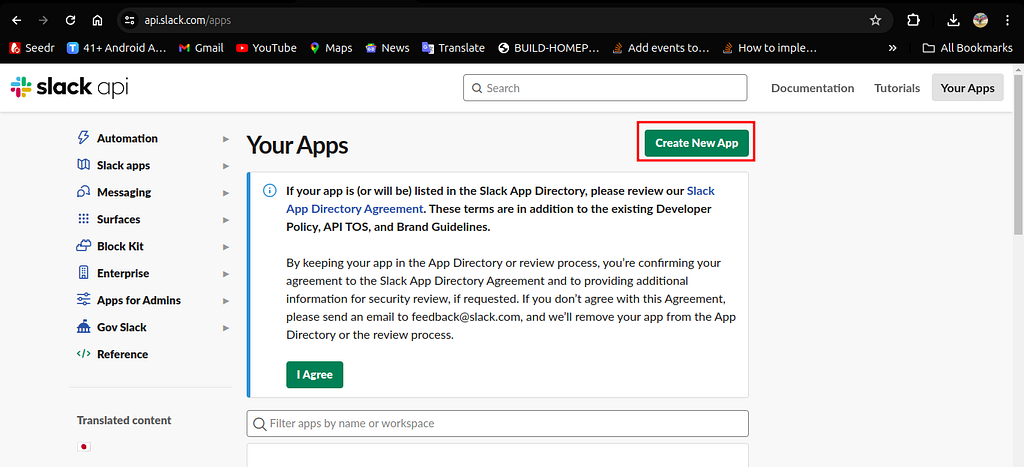
- To create a webhook URL, you need to visit https://api.slack.com/apps
And click on Create New App
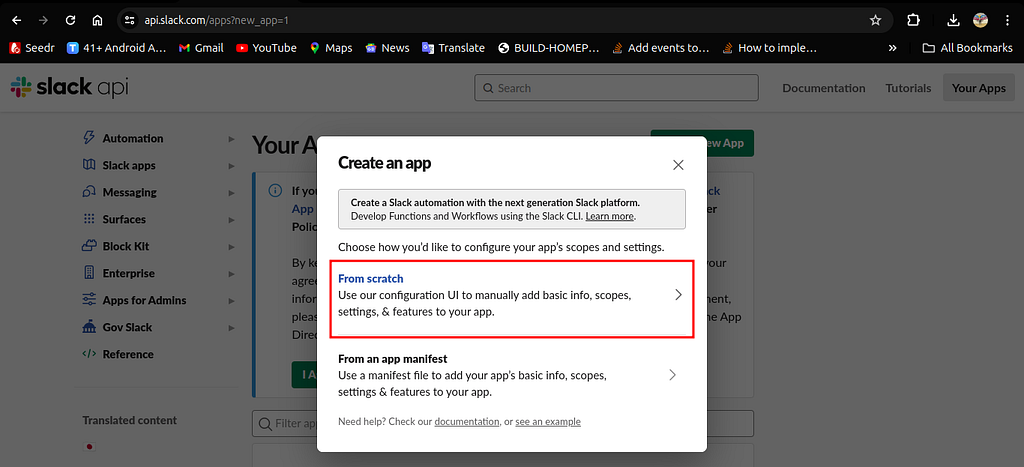
2. Select From scratch
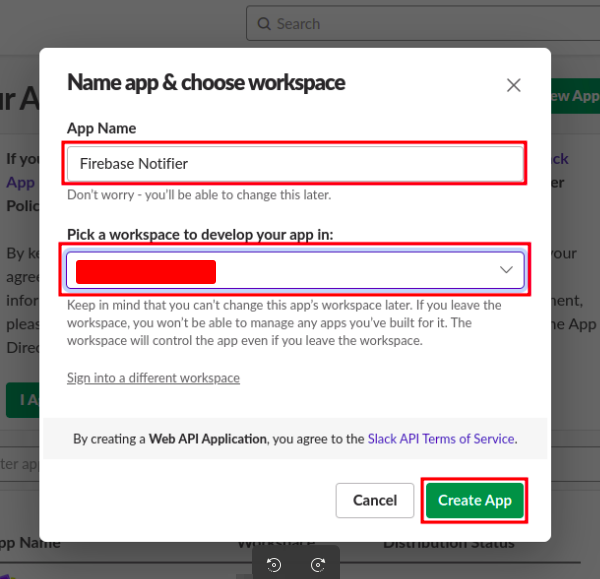
3. Enter the name for your slack app, select the workpace you want to put the app, and click on Create App
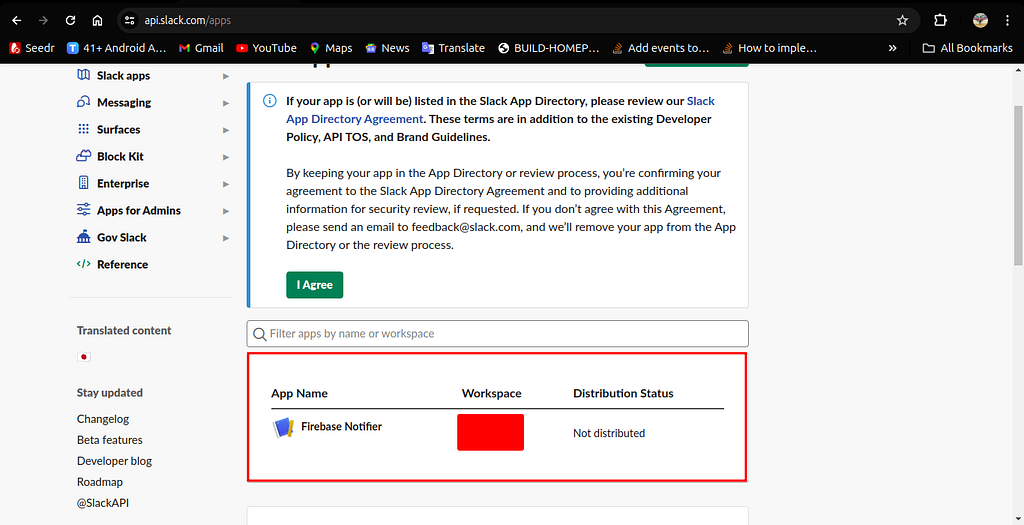
4. Now that your app has been created, select the slack app you just created
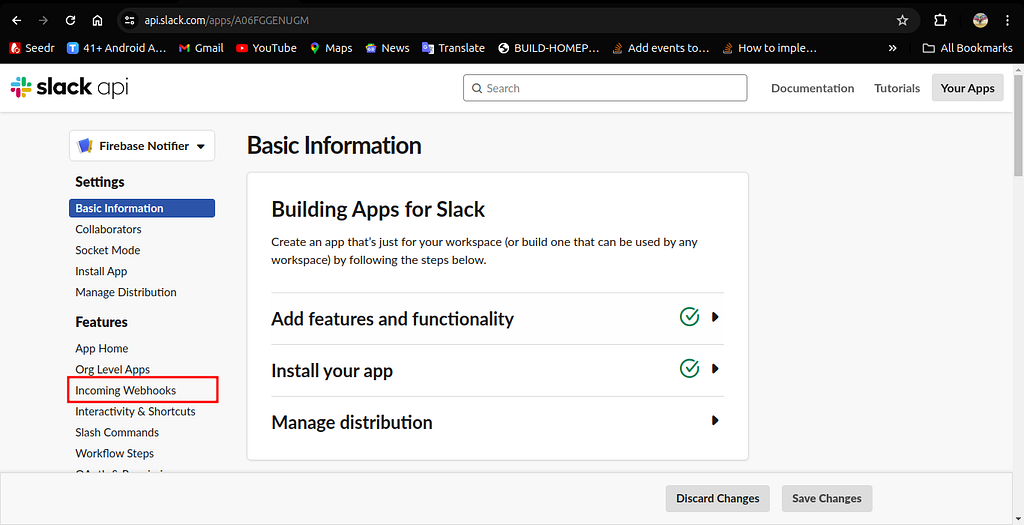
5. Select Incoming Webhooks to create your webhook for the slack app
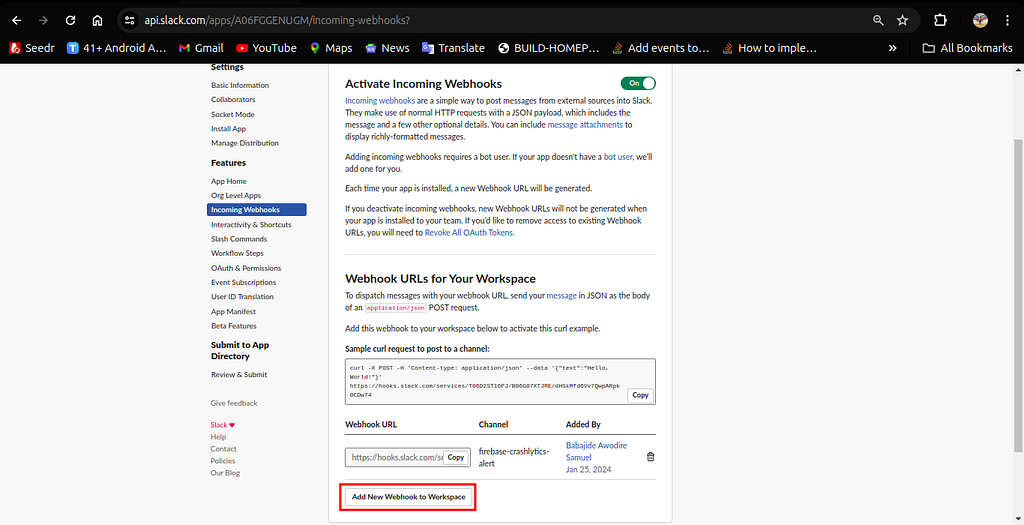
6. Enable Incoming Webhooks toggle for this slack app, if it is not enabled

7. Click on Add New Webhook in Workspace since, you are doing it for the first time
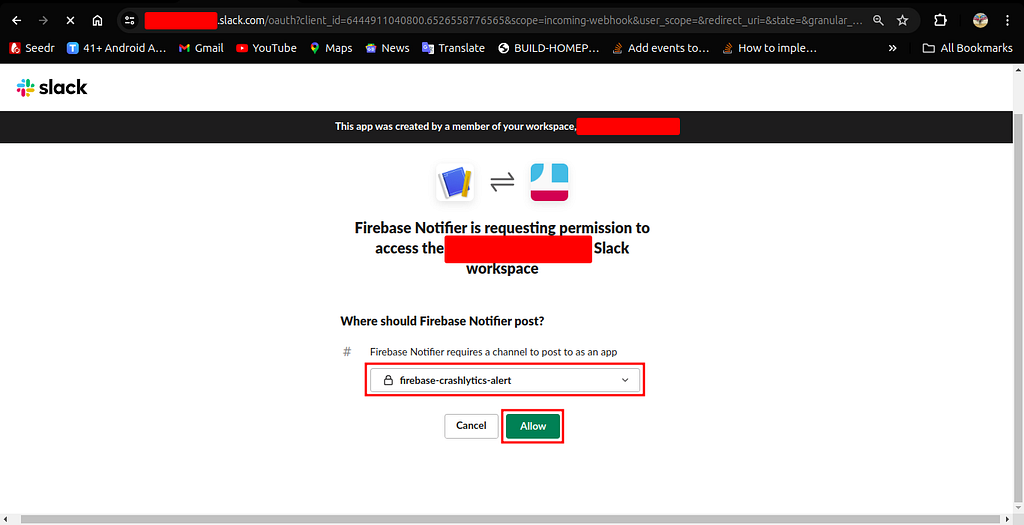
8. While you create a new webhook for your workspace, you will be redirect to a new page where need to select the slack #channel you specifically created for the firebase bug updates or you can select any channel of your choice, after selecting it click on Allow
9. you will see the webhook you just created, on the incoming webhooks page, select the webhooks URL and copy it
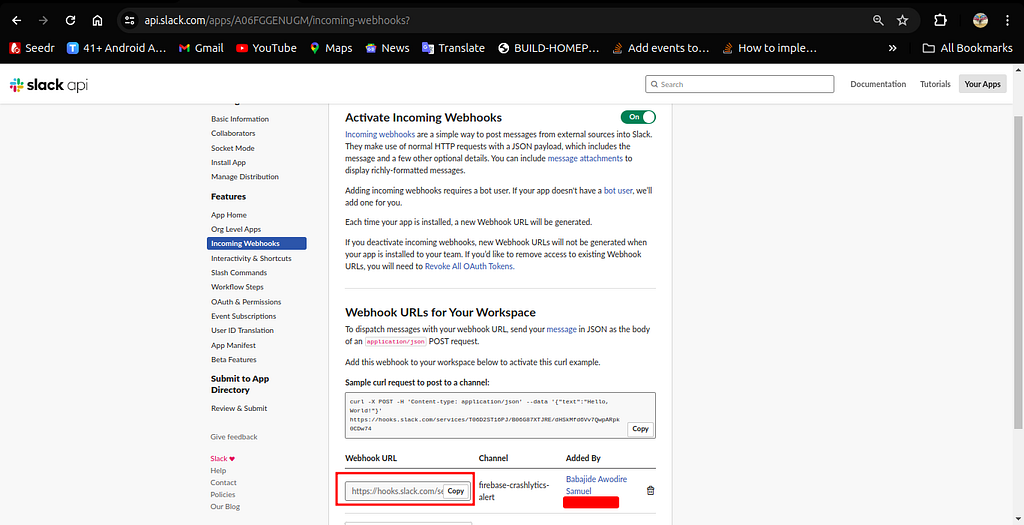
Note: you have successfully created your slack webhook, copy your webhook URL and move to the next step.
Add your slack webhook URL to Firebase console, and enable the feature
- Open the firebase console: https://console.firebase.google.com/ and select the settings icon, close to project overview
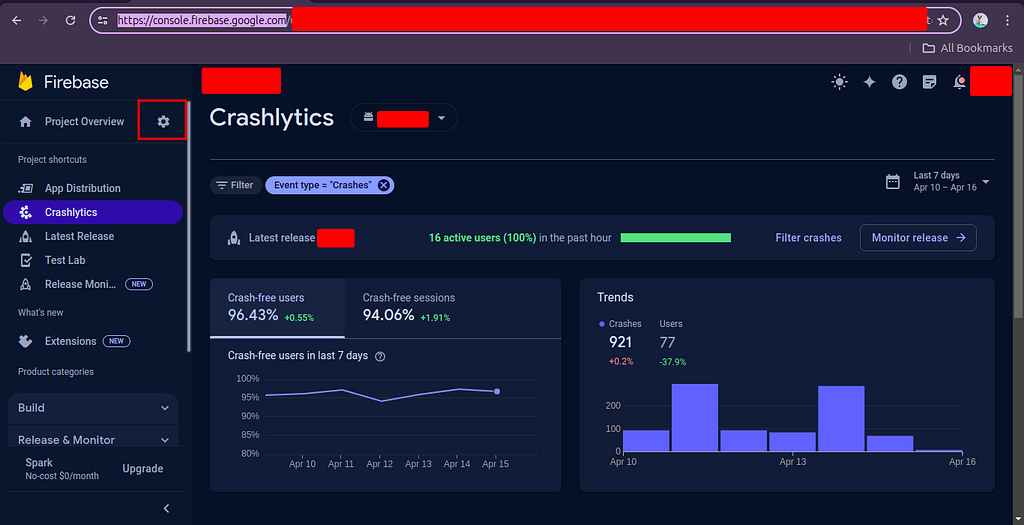
2. Navigate to your project settings and click into the Integrations tab and select slack option to configure the webhook you copied

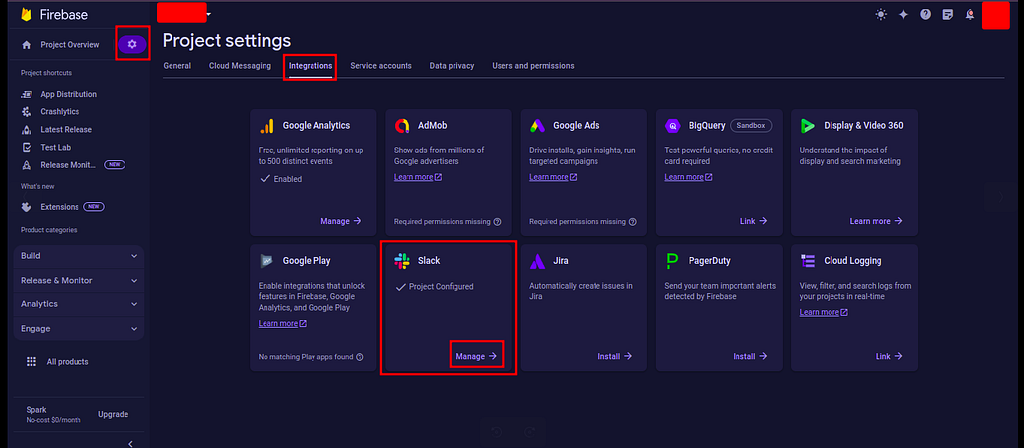
3. Next, setup your Slack connection by providing a webhook URL you copied before from the first step, type the exact #channel name, and a username for posting those firebase bug updates to the slack channel, and lastly click on verify & save

4. Finally, choose your triggers for the exact project you configured firebase crashlytics SDK. You can get notifications for all the listed triggers below from the firebase console by checking all of them, depending on the ones you need.
When you are done click on Save
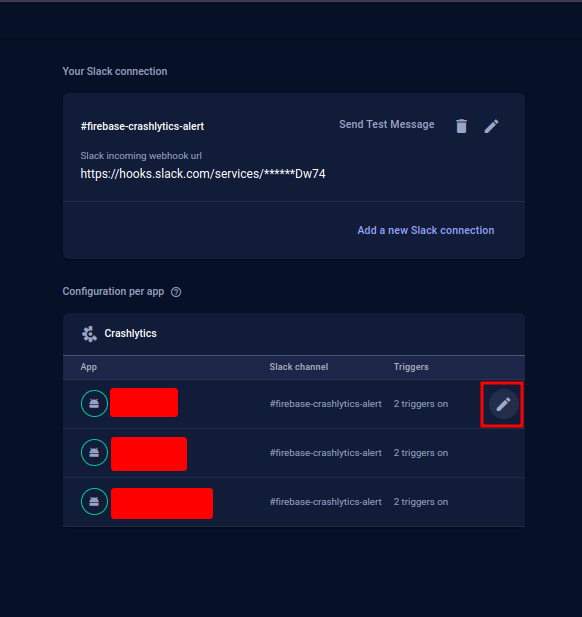
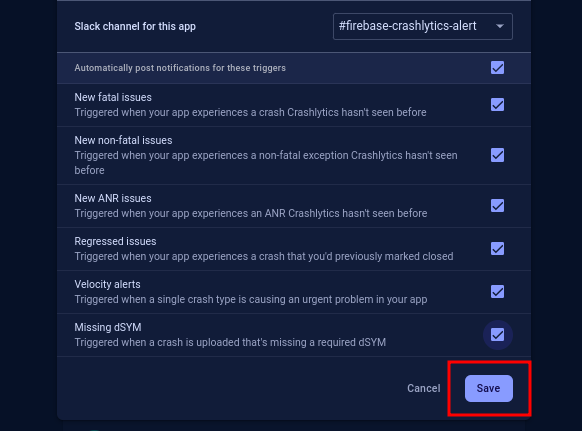
Note: you have successfully connected your slack webhook to firebase crasylytics successfully, all we need to do next is to test your implementation.
Send a Test bug report
This is the final step of the whole process, all you need to do is to click on Send Test Message
You should get a message on the #Channel you connected to your webhook via Slack.

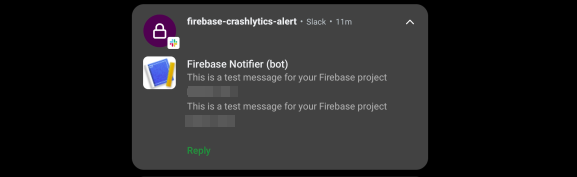
Note: so, that is how you will be getting all the bugs report with respect to the triggers you enabled from firebase crashlytics directly on your slack channel, when ever your app crashes anywhere in the world.
In Conclusion:
Let’s reflect on the steps, we outlined above
- Create a webhook URL for your slack workspace
- Add your slack webhook URL to Firebase console, and enable the feature
- Send a Test bug report
That’s a wrap! We’ve covered all you need to know. 🎬
I’m glad you made it this far, if you found this article intriguing, share it with your friends and give it a big round of applause. 👏
Stay tuned for my next masterpiece! 📝
Now, It’s time to get back to work🤞
How to get firebase crashlytics bug reports directly on a Slack channel in real-time was originally published in Level Up Coding on Medium, where people are continuing the conversation by highlighting and responding to this story.