By Khuyen Tran | 2025–05–05
What Sets UV Apart
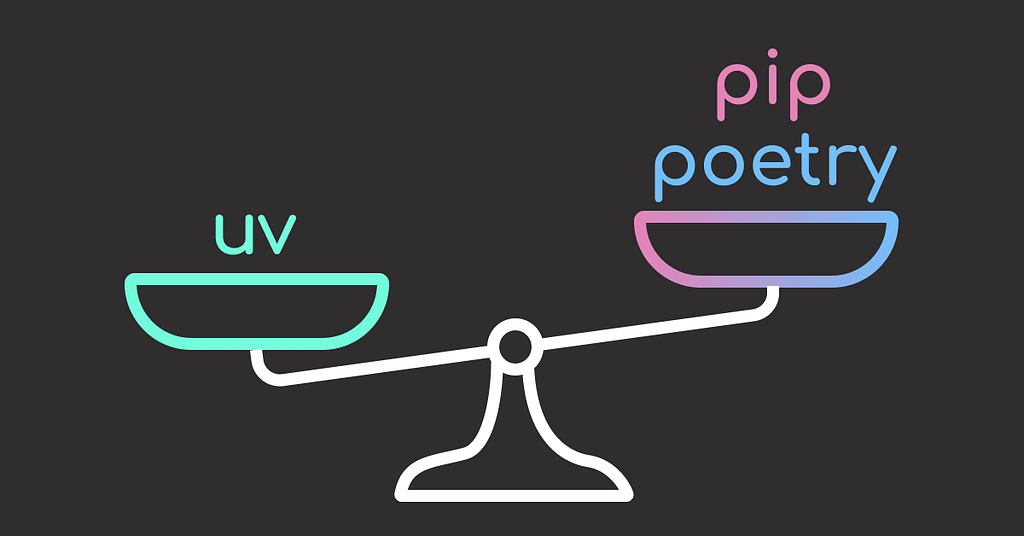
Why UV? With one tool, you get uv python for managing versions and uv add for installing packages (faster and simpler than juggling pip, pyenv, and Poetry).
Here’s how it delivers on both:
- Integration: Replaces pip, virtualenv, pyenv, pipx, and Poetry, simplifying workflows.
- Performance: Built in Rust for fast, efficient installs and resolution.
Below is a quick look at the tools UV consolidates into one streamlined interface:
┌──────────────────────────────┬─────────────────────────┐
│ UV Functionality             │ Replaces Tool(s)        │
├──────────────────────────────┼─────────────────────────┤
│ Dependency management        │ pip,pip-tools, Poetry   │
│ Virtual environment creation │ virtualenv,venv, Poetry │
│ CLI tool execution           │ pipx                    │
│ Python version management    │ pyenv                   │
│ Project management           │ Poetry                  │
└──────────────────────────────┴─────────────────────────┘
Key Takeaways
Here’s what you’ll learn:
- Replace 5+ Python tools with UV’s unified interface for 10x faster dependency management
- Switch Python versions instantly without recreating virtual environments or reinstalling packages
- Embed dependencies directly in scripts using PEP 723 for truly portable code
- Run CLI tools like ruff and black on-demand without global installation
- Create professional Python packages with console scripts and proper distribution
For organizing your project layout after setting up UV, this guide on Structuring a Data Science Project for Maintainability walks through best practices for layouts, naming conventions, and team collaboration patterns that pair perfectly with UV’s dependency management..
Installing Python with UV
In a typical workflow without UV, you’d use pyenv to install and manage Python versions, then venv and pip to create and manage a virtual environment and dependencies.
For example, you might start a project using Python 3.8 and later decide to upgrade it to Python 3.11. This means switching the Python version with pyenv, then manually recreating the virtual environment and reinstalling dependencies using pip.
# Initial project setup with Python 3.8.16
pyenv install 3.8.16
pyenv local 3.8.16
python3 -m venv .venv
source .venv/bin/activate
pip install pandas matplotlib
# Deactivate and remove the current environment
deactivate
rm -rf .venv
# Recreate virtual environment using Python 3.11.2
pyenv install 3.11.2
pyenv local 3.11.2
python3 -m venv .venv
source .venv/bin/activate
pip install pandas matplotlib
With UV, all of this is unified in a single interface. You can switch Python versions and install dependencies using one tool. No need to recreate the virtual environment or reinstall dependencies.
# Start with Python 3.8.16
uv python install 3.8.16
uv python pin 3.8.16
uv add pandas matplotlib
# Upgrade to Python 3.11.2
uv python install 3.11.2
uv python pin 3.11.2
Managing Dependencies for Single-File Scripts
Sometimes, you just want to run a script without installing anything globally, like when exploring data with matplotlib or seaborn for a quick one-off task.
UV makes this effortless by allowing you to declare dependencies inline and automatically manage an isolated environment tied to the script itself.
For example, if you have a python file like this:
# example.py
import seaborn as sns
import matplotlib.pyplot as plt
# Sample data
data = sns.load_dataset("penguins").dropna()
# Plot using seaborn only
sns.scatterplot(data=data, x="flipper_length_mm", y="body_mass_g", hue="species")
plt.title("Flipper Length vs Body Mass by Species")
plt.show()
Run your script with seaborn in an isolated environment without installing anything globally:
uv run --with seaborn example.py
This eliminates the need for a separate requirements file and prevents pollution of your global or project environments.
Managing Dependencies in Single Python Files
Have you ever shared a Python script with a colleague and they couldn’t run it because they didn’t have the right dependencies installed? Asking them to read the README and install dependencies manually adds unnecessary friction for simple scripts.
Here is an example of a traditional approach with external requirements:
# analysis.py
import pandas as pd
import matplotlib.pyplot as plt
import seaborn as sns
# Load and plot data
df = pd.read_csv("data.csv")
sns.scatterplot(data=df, x="x", y="y")
plt.show()
# Separate requirements.txt needed
echo "pandas\nmatplotlib\nseaborn" > requirements.txt
pip install -r requirements.txt
python analysis.py
Use uv add --script to embed dependencies directly in your script with PEP 723 inline script dependencies, eliminating the need for a separate requirements.txt file and ensuring true portability.
uv add --script analysis.py pandas matplotlib seaborn
# /// script
# dependencies = [
#   "pandas",
#   "matplotlib",
#   "seaborn"
# ]
# ///
import pandas as pd
import matplotlib.pyplot as plt
import seaborn as sns
# Load and plot data
df = pd.read_csv("data.csv")
sns.scatterplot(data=df, x="x", y="y")
plt.show()
Now, you can run the script without any additional setup.
# No external files needed - just run the script
uv run analysis.py
Executing and Installing CLI Tools Like pipx
Tools like ruff, black, and isort are often used globally across projects. Installing them in the base environment can cause version conflicts or unnecessary clutter.
uvx runs CLI tools on demand in isolated environments, like pipx, but without needing to install them first.
To run ruff without installing it:
uvx ruff check example.py
Output:
All checks passed!
UV runs it in an isolated environment. No setup, no changes to your system.
Project Management Capabilities Like Poetry
Beyond handling single-file scripts, UV also provides full project management similar to Poetry. It can initialize new projects, manage dependency groups, and generate pyproject.toml files.
To create a new project:
uv init
After running uv init, the following files will be created:
.
├── .python-version
├── README.md
├── main.py
└── pyproject.toml
The main.py file contains a simple “Hello world” program. Try it out with uv run:
uv run main.py
Project structure:
- .python-version pins the Python version used for the project
- README.md provides a starting point for documenting your project
- main.py is a simple entry-point script (e.g. “Hello world”)
- pyproject.toml declares project metadata and dependencies in a modern, standard format
Typical dependency tasks with UV:
uv add pandas matplotlib       # Install packages
uv remove matplotlib           # Remove a package
uv add pandas --upgrade        # Upgrade a package
uv sync                        # Install from pyproject.toml
Like Poetry, UV manages environments via pyproject.toml, but it’s faster thanks to its Rust-based backend.
Creating Python Packages with UV
A Python package is a collection of code that can be distributed and installed by others. Unlike simple scripts, packages provide a professional way to share reusable functionality with proper versioning, dependencies, and installation mechanisms.
UV makes package creation straightforward with built-in scaffolding and modern tooling.
To create a new package project:
uv init --package my-awesome-package
This creates a complete package structure:
my-awesome-package/
├── .python-version
├── README.md
├── pyproject.toml
├── src/
│   └── my_awesome_package/
│       ├── __init__.py
│       └── py.typed
└── tests/
The pyproject.toml contains essential package metadata:
[project]
name = "my-awesome-package"
version = "0.1.0"
description = "Add your description here"
readme = "README.md"
requires-python = ">=3.8"
dependencies = []
[build-system]
requires = ["uv_build>=0.8.4,<0.9.0"]
build-backend = "uv_build"
To build your package:
cd my-awesome-package
uv build
This creates installable distributions in the dist/ directory that others can install with pip install or uv pip install.
Creating Console Scripts with project.scripts
When building Python packages, you want to provide users with intuitive, memorable commands instead of requiring them to remember complex module paths.
For example, instead of forcing users to type:
python -m my_awesome_package.main
# or
python src/my_awesome_package/main.py
Wouldn’t it be nice if your users could just run?
my-awesome-package
Python’s console scripts feature makes this transformation possible. This can be achieved by adding a console script to your pyproject.toml file.
Let’s walk through creating a custom command step by step. To illustrate, let’s say you have a project with this structure:
my-awesome-package/
├── src/
│   └── my_awesome_package/
│       ├── __init__.py
│       └── main.py
└── pyproject.toml
First, create your entry point function. Your main.py should contain the entry point function:
# src/my_awesome_package/main.py
def main():
    """Entry point for the application."""
    print("Hello from my-awesome-package!")
    print("Add your application logic here")
if __name__ == "__main__":
    main()
Next, configure the console script in your project file. To make the src/my_awesome_package/main.py file executable as my-awesome-package, add the entry point to your pyproject.toml:
[project.scripts]
my-awesome-package = "my_awesome_package.main:main"
This creates a console script that maps the my-awesome-package command to the main() function in my_awesome_package.main module.
Finally, install and test your custom command. To install the package and run it with the custom command:
# Install the package
uv sync
After installation, users get a professional CLI experience:
# Run with the custom command
my-awesome-package
This approach provides a cleaner user experience and follows Python packaging best practices.
A Drop-in Replacement for Pip, pip-tools, and Virtualenv
If you’re installing packages with pip, freezing requirements, or managing environments with virtualenv, you can adopt UV without changing your existing workflow.
UV uses familiar commands but runs them faster and more cleanly:
Creating a virtual environment:
uv venv
Activating the virtual environment:
- Unix/macOS:
source .venv/bin/activate
- Windows:
.venv\Scripts\activate
Installing packages:
uv pip install pandas scikit-learn
Deactivate a virtual environment:
deactivate
In each case, UV behaves predictably for Python developers familiar with pip and virtualenv, but with a noticeable speed boost.
Production Reproducibility with Timestamp Controls
When using newly published packages, your production environment might install different versions than what you tested, introducing unpredictable behavior.
UV’s --exclude-newer flag ensures reproducible builds by filtering packages to those published before a specific timestamp.
Without timestamp controls:
# Package versions may change between deployments
uv add pandas matplotlib
uv sync
With timestamp-based reproducibility:
# Consistent package universe across deployments
uv add pandas matplotlib --exclude-newer 2024-12-01T00:00:00Z
uv sync --exclude-newer 2024-12-01T00:00:00Z
Integration with Marimo
Marimo is a lightweight, reactive Python notebook framework for reproducible analysis and building data apps.
UV also supports Marimo for notebook-based workflows. You can launch a live editing session in a fully sandboxed environment like this:
(If you want a deeper breakdown, I’ve written a full guide on using Marimo as a modern, reproducible notebook for data science.)
uv run marimo edit notebook.py --sandbox
This makes it easy to prototype, explore data, or demonstrate code in a clean, reproducible workspace.
Final Thoughts
I used to be a fan of Poetry (here’s why) until I discovered UV. It’s definitely worth your time: UV combines multiple tools into one cohesive experience and delivers superior speed.
For your next project, I recommend giving UV a try. It’s easy to learn and eliminates the overhead of switching between multiple Python tools.
Originally published at CodeCut.
Goodbye Pip and Poetry. Why UV Might Be All You Need was originally published in Level Up Coding on Medium, where people are continuing the conversation by highlighting and responding to this story.