If you have spent any time in software development, you have probably heard someone say “it works on my machine.” It is one of the most frustrating phrases in the industry — and it is the exact problem Docker was built to solve.
This guide walks you through Docker from the ground up: why it exists, what it actually does, how it works internally, and why it matters far beyond just your local development environment.

1. Why Docker? The Problem It Solves
Code vs Environment — What Is the Difference?
This is the most important concept to understand before anything else.
Your application is the code you write — the JavaScript files, the React components, the API routes, the business logic. It lives in your repository.
Your environment is everything your code depends on to run — but is not part of your code itself.
What exactly makes up an environment?
When you write a Node.js application and it runs on your machine, a lot more is happening than just your code executing. Here is everything that constitutes your environment:

Notice the pattern. package.json does a great job of managing your JavaScript dependencies. But it only handles one layer of the environment. Everything underneath — the Node version, the database, the OS libraries — is completely invisible to package.json.
The “Works on My Machine” Problem
Here is a real scenario that plays out on engineering teams every day:
- You build a feature on Node 18. Your teammate is on Node 20.
- A package you both use behaves slightly differently between those two versions.
- The feature works perfectly on your machine and breaks on theirs.
- You spend half a day debugging code that looks completely correct — because the bug is not in the code at all. It is in the environment mismatch.
This is not just a Node version problem. The same issue happens with:
- Database versions (PostgreSQL 13 vs 14 behaving differently on a query)
- OS-level libraries (a compiled package like node-sass or bcrypt built for the wrong Node version)
- Missing environment variables that someone forgot to document
- A backend service that works on Mac but fails on the Linux production server
How Packages Can Behave Differently Across Node Versions
A concrete example: before Node 18, the fetch API did not exist in Node. Developers installed the node-fetch package and imported it explicitly. In Node 18, fetch became a native global.
Teams running a mix of Node versions suddenly had two different fetch implementations in play — with subtle differences in how they handled errors, headers, and response bodies. Code written around node-fetch's error shape would silently misbehave on Node 18's native fetch:
// On node-fetch (Node 16)
} catch (err) {
  console.log(err instanceof FetchError) // true
  console.log(err.type)                  // 'system'
}

// On native fetch (Node 18) - FetchError does not exist here
} catch (err) {
  console.log(err instanceof FetchError) // ReferenceError: FetchError is not defined
  console.log(err.type)                  // undefined
}
Your package.json looked fine. Everyone ran npm install. The right packages were installed. But the runtime behaviour was different because the Node version underneath had changed. This is the gap Docker fills.
Docker’s Solution: Export Code and Environment Together
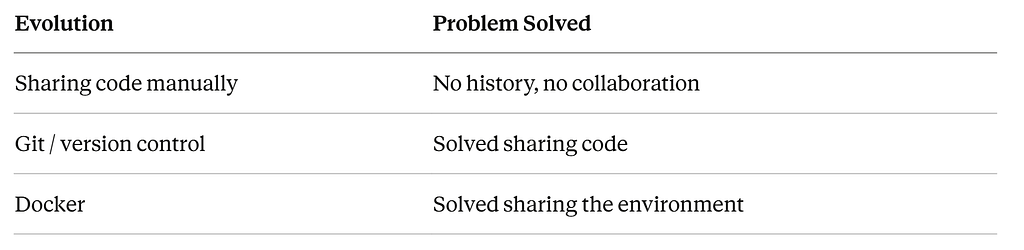
Docker’s core insight is simple: instead of sharing just the code and hoping everyone sets up the same environment, package the code and the environment together into one portable unit.
Before Docker: you share code and hope everyone’s environment matches. With Docker: you share code + environment as one inseparable bundle.
The analogy that makes this click: Git solved the problem of sharing code — everyone gets the same code. Docker solved the problem that Git left behind — everyone also gets the same environment to run that code in.
2. The Docker Process — From Dockerfile to Running Container
The Project Before Docker
Start with a simple Node.js Express server:
my-app/
├── index.js
└── package.json
// index.js
const express = require('express')
const app = express()
app.get('/', (req, res) => {
  res.send('Hello World')
})
app.listen(4000)
On your machine, you run npm install and npm start. It works. The problem comes when someone else needs to run it.
Step 1: Writing the Dockerfile
A Dockerfile is a plain text file with instructions for how to build your app’s environment. Think about what you would do manually if you had to set this up on a brand new, completely empty computer:
- Install Node 18
- Create a working folder
- Copy package.json in and run npm install
- Copy the rest of the code
- Start the server
That is exactly what a Dockerfile is — those same steps, written in Docker’s syntax:
FROM node:18-alpine

WORKDIR /app

COPY package.json ./

RUN npm install

COPY . .

EXPOSE 4000

CMD ["node", "index.js"]
What each line actually does
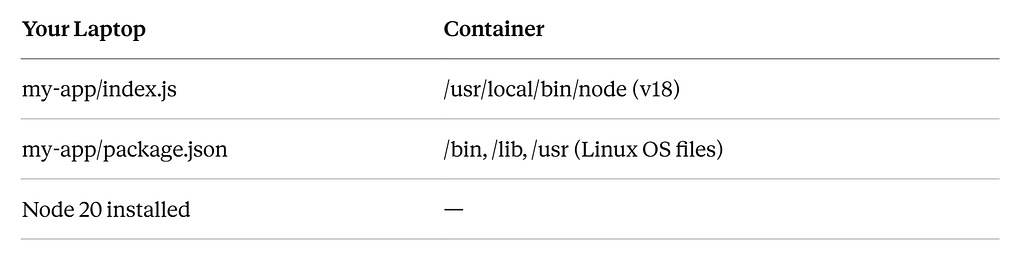
FROM node:18-alpine — Start with a pre-built mini Linux computer that already has Node 18 installed. This image is pulled from Docker Hub, the public registry of pre-built environments. This is where the Node version gets locked in.
WORKDIR /app — Create a folder called /app inside the container and make it the working directory. This keeps your project files separate from the container's OS files, just like you would not dump your project into C:\ on Windows.
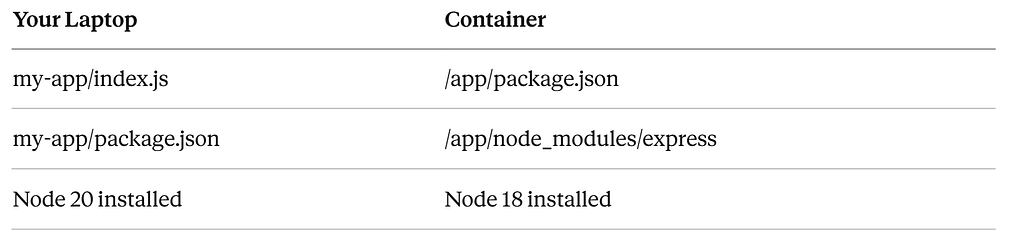
COPY package.json ./ — Copy package.json from your laptop into the /app folder inside the container. At this point, two separate file systems exist — your laptop and the container.
RUN npm install — Run npm install inside the container. Dependencies get installed there, not on your machine.
COPY . . — Copy everything else from your laptop into the container. The two dots mean: first dot = current folder on your laptop, second dot = current folder inside the container.
EXPOSE 4000 — Document that this app runs on port 4000. Think of it as labelling a door.
CMD ["node", "index.js"] — When the container starts, run this command.
Why package.json is copied separately from the rest of the code
Docker caches the result of each line. If a line has not changed since last time, it skips it and uses the cached result. Your package.json changes rarely. Your index.js changes constantly. By splitting the copy, npm install only reruns when you actually add or remove a package — not every time you edit a line of code.
Step 2: The File System at Each Stage
Here is exactly what exists on your laptop vs inside the container at each step:
After FROM node:18-alpine:
After COPY package.json and RUN npm install:
After COPY . . (final state):
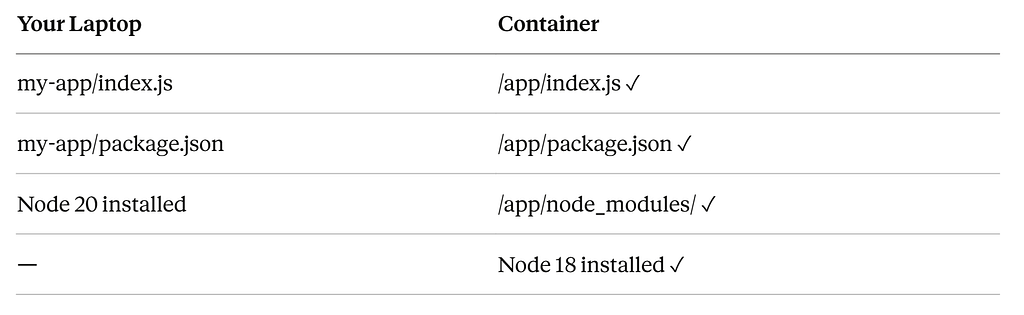
The container now has everything it needs to run. Your laptop’s Node 20 is completely invisible to the container — it runs on Node 18, as defined in the Dockerfile.
Step 3: Building and Running
Two commands handle everything:
# Build the image from the Dockerfile
docker build -t my-app .

# Run it, mapping port 4000 on your machine to port 4000 in the container
docker run -p 4000:4000 my-app
Your teammate pulls the same repo and runs the same two commands. They get the exact same environment — regardless of what Node version they have installed, regardless of their OS, regardless of anything on their machine.
Step 4: Docker Compose for Multiple Services
Real applications are never just one service. Your React frontend talks to a Node backend, which talks to a database. Docker Compose lets you define the entire stack in one file:
# docker-compose.yml
services:
  backend:
    build: .
    ports:
      - "4000:4000"
    environment:
      - DATABASE_URL=postgres://user:pass@database:5432/myapp
    depends_on:
      - database
database:
    image: postgres:14
    environment:
      POSTGRES_PASSWORD: secret
      POSTGRES_DB: myapp
One command spins up the entire stack:
docker compose up
The backend runs in one container with Node 18. The database runs in its own container with Postgres 14. A new developer clones the repo and runs that single command. No manual installs. No setup guides. No environment mismatch.
3. Docker Internals — How Containers Actually Work
The Most Common Misconception
Most people assume a Docker container is a miniature virtual machine — a separate computer running inside your computer. This is wrong, and understanding why it is wrong is what makes Docker actually make sense.
A container is not a separate computer. It is a regular Linux process, running directly on your machine’s kernel — but with invisible walls built around it.
The Two Linux Kernel Features Docker Uses
Docker did not invent anything new. It uses two features that have existed in the Linux kernel for years.
1. Namespaces — What a process can see
Normally every process on your computer can see everything — all other processes, the entire file system, the network, the hostname. Namespaces let you hide all of that from a specific process.
When Docker creates a container, it asks the kernel for a new namespace. Inside that namespace, the process gets a completely different view of the world:
Resource Reality on the server What the container sees Other processes Hundreds running Thinks it is the only one File system The real server file system Only sees the image files Network The real server network A virtual private network Hostname The server’s real hostname Its own unique hostname
The process is not actually on a separate computer. It just cannot see anything outside its namespace. The isolation is enforced by the kernel.
2. Cgroups (Control Groups) — What a process can use
Even if a process cannot see other processes, it could still consume all the RAM and CPU on the server, starving everything else. Cgroups solve this.
A cgroup puts a hard ceiling on how much of each resource a process is allowed to consume:
# In docker-compose.yml
services:
  backend:
    mem_limit: 512m     # max 512MB RAM
    cpus: '1.0'         # max 1 CPU core
The Linux kernel enforces these limits at the hardware level. If a container tries to use more RAM, the kernel kills it. If it tries to use more CPU, the kernel throttles it. Other containers are completely unaffected.
Think of a server as an office building with a shared electricity supply. Without cgroups, one tenant could draw all the power and cut electricity for everyone. Cgroups are the circuit breakers — each tenant has a hard limit, and tripping their breaker affects only them.
3. Mounts — What file system the process sees
The third piece is how the container gets its file system. Docker takes all the files from your image — Node 18, your code, your node_modules — and mounts them as the file system inside the namespace.
The container thinks it has its own real file system. In reality, it is looking at files Docker unpacked from the image, stored in Docker’s internal storage on the host. Your machine’s actual file system, with its own Node version and files, is completely invisible to the container.
What Docker Asks the Linux Kernel For
When you run docker compose up, Docker makes exactly three requests to the Linux kernel:
- Create a namespace — give me an isolated bubble where this process can only see what I put inside it
- Set a cgroup limit — cap this bubble at X RAM and Y CPU cores
- Mount these files — attach the image’s files as the file system inside that bubble
Docker itself does not create anything. It is an interface that talks to the Linux kernel and requests these three things. The kernel does the actual work. This is why Docker only works natively on Linux. On Mac and Windows, Docker Desktop silently runs a tiny Linux virtual machine in the background to provide the kernel Docker needs.
Images, Containers, and the Registry
Three terms that often get confused:
Dockerfile — the recipe A plain text file with instructions for building the environment. Lives in your Git repository alongside your code.
Image — the frozen meal The result of running docker build. It is essentially a zip file containing the exact Node version, your code, your dependencies, and the OS libraries needed — all frozen together. An image just sits there doing nothing. It is not running.
Container — the meal, alive What you get when you run an image. Docker asks the kernel for a namespace, cgroup, and mount, unpacks the image into that namespace, and starts your process. The container exists only while it is running. Stop it and it disappears. The image it came from remains untouched.
The image is the blueprint. The container is what gets built from that blueprint when you run it. One image can spawn multiple containers simultaneously — this is how large applications scale horizontally.
Registry — the freezer A place to store and share images. Docker Hub is the public registry, the same way GitHub is the public repository for code. Companies often use private registries like AWS ECR or Google Container Registry for their own images.
An Important Consequence: Containers Are Stateless
Because a container is temporary, anything that happens inside it at runtime disappears when it stops. A user uploads a profile picture — it gets saved inside the container’s file system — the container restarts — the picture is gone.
Docker solves this with Volumes — a folder on the actual host server that gets connected to the container. Writes inside the container go to the real server disk. Data survives container restarts.
services:
  backend:
    volumes:
      - /data/uploads:/app/uploads  # host:container
4. Docker Is Not Just a Developer Tool — It Powers the Entire Deployment Pipeline
Here is something most Docker tutorials do not tell you: Docker was not invented for local development convenience. It was invented to solve deployment reliability.
The original problem Docker was designed for: how do we guarantee that the app runs exactly the same in production as it did when we tested it?
Local development benefits came later. The real power of Docker is that it unifies three completely different environments — developer laptops, CI/CD testing servers, and production — under one consistent, reproducible environment.
The Deployment Problem Without Docker
When your code needs to go from your laptop to a production server, it faces the same environment mismatch problem — just at a larger scale. A production server is essentially a new computer. Someone has to configure it:
- Install the right Node version
- Install the right database version
- Set all environment variables
- Configure the network and ports
- Hope nothing conflicts with other apps on the same server
Every deployment is a manual operation. When something breaks in production but not locally, debugging is a nightmare — because the environments are different.
What a Server Actually Is
A server is just someone else’s computer — sitting in a data center, running 24/7, connected to the internet with a public IP address. When you rent a server from AWS or GCP, you are renting a Linux machine.
The key insight: that server does not need Node installed. It does not need any specific software. It just needs Docker. Because the Docker image contains everything — the environment, the runtime, the code. The server is just a vessel to run containers.
The Full Deployment Pipeline
Here is the complete journey from your laptop to users, with Docker at every step:
Developer writes code + Dockerfile
         |
         v
git push to GitHub
         |
         v
CI/CD Pipeline triggers (GitHub Actions / Jenkins)
  Step 1: Pull the new code
  Step 2: Run automated tests inside a Docker container
  Step 3: If tests pass, build the Docker image
  Step 4: Push the image to a registry (Docker Hub / AWS ECR)
  Step 5: Tell the production server to pull the new image
         |
         v
Production server runs: docker compose up
         |
         v
Users access the app via yourapp.com  ✅
After the initial server setup, no human manually touches the server for routine deployments. The entire process is automated. Docker is the thread that runs through every step.
CI/CD and How Docker Fits In
CI/CD stands for Continuous Integration and Continuous Deployment. It is an automated pipeline that watches your Git repository. The moment you merge code into the main branch, it wakes up and executes a series of steps automatically.
Tools like GitHub Actions are configured with a file in your repo:
# .github/workflows/deploy.yml
on:
  push:
    branches:
      - main
jobs:
  deploy:
    runs-on: ubuntu-latest
    steps:
      - name: Run tests
        run: docker compose run backend npm test
      - name: Build image
        run: docker build -t my-app:latest .
      - name: Push to registry
        run: docker push my-app:latest
      - name: Deploy to server
        run: ssh server 'docker compose up -d'
The CI/CD pipeline also acts as a safety gate on pull requests. GitHub Actions runs the tests in a Docker container the moment you open a PR — and the merge button stays locked until they pass. No human has to remember to run tests. The system enforces it automatically.
Why This Matters for Frontend Developers
If you only write React code, Docker’s day-to-day impact on your workflow is limited. npm run start remains your primary command. But Docker becomes directly relevant in these scenarios:
- Running the full stack locally — instead of manually installing a backend’s dependencies, docker compose up spins up the entire API and database automatically
- Deployment ownership — modern frontend teams increasingly own their own deployment pipelines, which means writing and maintaining Dockerfiles
- CI/CD debugging — when tests pass locally but fail in CI, understanding Docker tells you exactly why
- Multiple projects — each with different Node versions, completely isolated without any version manager juggling
As we grow into more senior roles, infrastructure and deployment become unavoidable parts of the job. Docker is the foundation that everything else builds on.
Putting It All Together
Docker exists because shipping code alone was never enough. The environment your code runs in is as important as the code itself — and for most of software history, that environment was invisible, undocumented, and different on every machine.
Docker solves this by making the environment explicit, portable, and reproducible. A Dockerfile describes the environment in code. docker build freezes it into an image. docker compose up brings it to life as a container on any machine, anywhere — from your laptop to a server on the other side of the world.
Under the hood, none of this is magic. Docker uses two Linux kernel features — namespaces for isolation and cgroups for resource control — to create lightweight, isolated processes that believe they are running on their own computer. No duplicate operating systems. No heavy virtualization. Just a regular process, with walls.
The mental model that ties it all together: Git solved sharing code. Docker solved sharing the environment. Dockerfile = the recipe. Image = the frozen meal. Container = the meal, alive.
Whether you are a frontend developer, a backend engineer, or somewhere in between — Docker is one of those tools where the initial investment in understanding it pays dividends for the rest of your career.
Connect with me : Linkedin
Docker From Scratch was originally published in Level Up Coding on Medium, where people are continuing the conversation by highlighting and responding to this story.